> For the complete documentation index, see [llms.txt](https://docs.solutioo.de/llms.txt). Markdown versions of documentation pages are available by appending `.md` to page URLs; this page is available as [Markdown](https://docs.solutioo.de/gls-connector/gls-connector_en_us/daily-work/labels-printing-and-tracking.md).

# Labels, Printing and Tracking

Label formats, batch printing, label reprints, weight correction, cancellation, tracking and end of day report for GLS packages.

This page explains how to print labels, request them again, and edit packages after the upload.

The illustrations show the German demo interface. See the [action-name guide](/gls-connector/gls-connector_en_us/quick-start.md#english-names-in-the-screenshots) for the English equivalents.

## Label formats

| Format    | Download | Built-in batch printing                 |
| --------- | -------- | --------------------------------------- |
| **PNG**   | yes      | yes, also stored as a label image       |
| **PDF**   | yes      | no, not embedded automatically          |
| **Zebra** | yes      | no, send the file to your label printer |

You set the format in the **Label Format** field of the configuration. **Download Label** returns the file in the stored format.

## Generate a label on the package card

1. Open the package card of the existing package that has not been uploaded yet, and check the sales order ship-to details, package contents, weight, and product and service.
2. Choose **Generate Label**. This creates a new shipment for this single package and transmits it to GLS.
3. Then check **Uploaded**, **Parcel Number**, **Track ID** and **Upload Date**, and the stored PNG label image.
4. Choose **Print Label** to open the stored-label report, then choose **Preview & Close** or **Print**.

If an order has several open packages, transmit them together with **Upload Packages to GLS** from the sales order. **Print Label** only outputs the locally stored PNG label and creates no new shipment; **Reprint Label** requests a copy of the existing label from GLS; **Generate Label** creates a new shipment for a package that has not been uploaded.

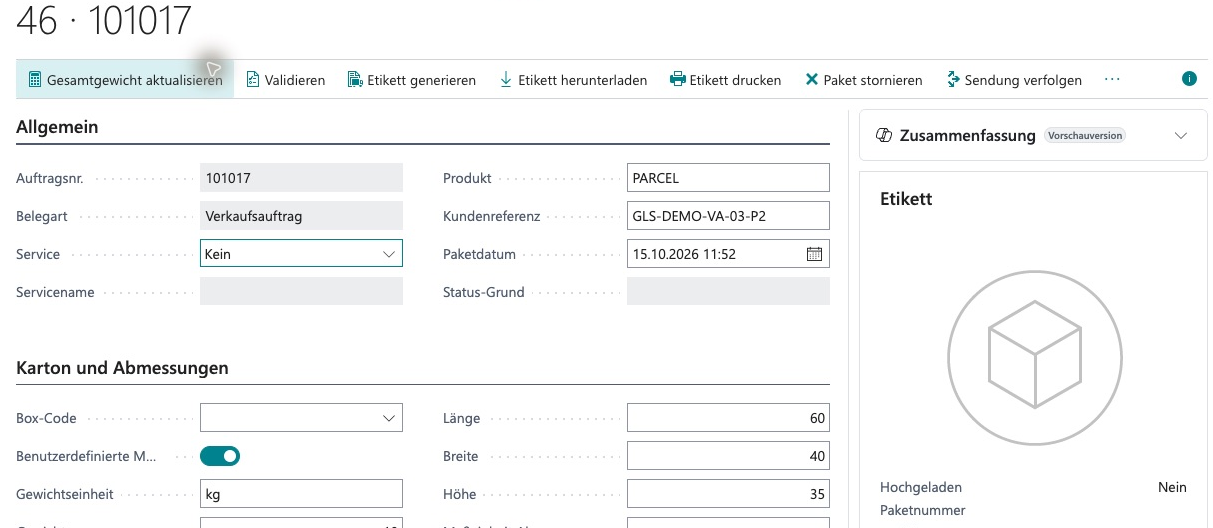
<figure><img src="https://4240336237-files.gitbook.io/~/files/v0/b/gitbook-x-prod.appspot.com/o/spaces%2F1xU0AaWQXNPVz5ZfC18N%2Fuploads%2FHHEyxnJGx2LASEluG56n%2Fgls-workflow-20261020-24-paketkarte-vor-versand.png?alt=media" alt="Package card 46, order 101017: PARCEL, reference GLS-DEMO-VA-03-P2, 60 × 40 × 35 cm, Uploaded No, label placeholder"><figcaption><p>Open demo package card 46 for order 101017 with product PARCEL, no additional service, customer reference GLS-DEMO-VA-03-P2 and dimensions 60 × 40 × 35 cm; Uploaded is No and the label area shows a placeholder. Generate Label creates a new GLS shipment for this package.</p></figcaption></figure>

## Printing labels

### Batch printing from the sales order

1. Upload the packages to GLS.
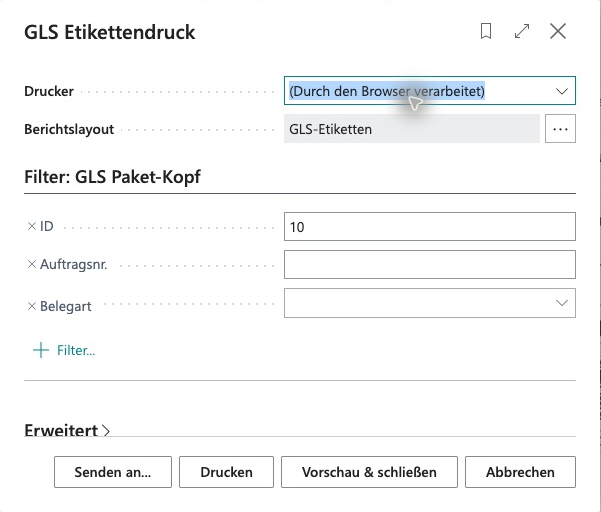
2. Choose **Print GLS Labels**.
3. Print the report using a print method available in your Business Central environment.

Batch printing uses stored label images, so use **PNG** for it. With PDF or Zebra, the report contains no label image. Changing the configuration later does not convert files that have already been stored; download such original files to print them. The app has no dedicated Universal Print integration.

<figure><img src="https://4240336237-files.gitbook.io/~/files/v0/b/gitbook-x-prod.appspot.com/o/spaces%2F1xU0AaWQXNPVz5ZfC18N%2Fuploads%2FYZMkljAhmJl4zqPdYpwX%2Fgls-workflow-20261020-11-etikettendruck-dialog.png?alt=media" alt="Stored-label print request page with browser-handled printer, GLS labels layout, ID filter 10 and the Print and Preview &#x26; Close buttons"><figcaption><p>Stored-label print dialog with a browser-handled printer, the GLS labels layout and a package filter. Preview &#x26; Close opens the preview; Print starts the selected print method.</p></figcaption></figure>

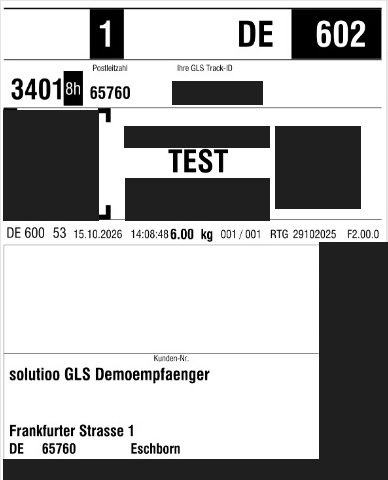
<figure><img src="https://4240336237-files.gitbook.io/~/files/v0/b/gitbook-x-prod.appspot.com/o/spaces%2F1xU0AaWQXNPVz5ZfC18N%2Fuploads%2FoJpl9YzwJntOjIwU3YdD%2Fgls-workflow-20261020-12-label-vorschau.png?alt=media" alt="Preview of an existing GLS label marked TEST with demo recipient and test address; sender, tracking value, barcodes and QR codes are masked"><figcaption><p>Excerpt of an existing GLS TEST label dated 15 October 2026 in the Business Central preview, showing the demo recipient and GLS test address. Sender and contact details, the tracking value, barcodes and QR codes are redacted.</p></figcaption></figure>

### Downloading a single label

On the package card, choose **Download Label**. Prerequisite: the package has been uploaded and label data is stored. This does not create a new shipment.

## After the upload

<figure><img src="https://4240336237-files.gitbook.io/~/files/v0/b/gitbook-x-prod.appspot.com/o/spaces%2F1xU0AaWQXNPVz5ZfC18N%2Fuploads%2FfvjidpTY1KgCAyCKe18h%2Fgls-workflow-20261020-10-paketkarte-label.png?alt=media" alt="Package card of an uploaded demo package: product PARCEL, no service, box TESTBOX, with Generate Label, Download Label and Print Label actions"><figcaption><p>Package card of an already uploaded demo package with product PARCEL and box code TESTBOX. Use Download Label or Print Label for its existing label.</p></figcaption></figure>

| Action on the package card        | Effect                                                | Prerequisite                                 |
| --------------------------------- | ----------------------------------------------------- | -------------------------------------------- |
| **Reprint Label**                 | Requests a copy of the label from GLS and stores it   | Configuration and track ID                   |
| **Update Weight at GLS**          | Sends the current weight from the package card to GLS | Track ID                                     |
| **Cancel Parcel**                 | Requests cancellation at GLS                          | Confirmation and track ID                    |
| **Retry Box Inventory Reduction** | Only retries the box inventory consumption            | Package uploaded, consumption not yet posted |

### Damaged or lost label

1. Open the package card and check the track ID.
2. Choose **Reprint Label**. No second shipment order is created.
3. Print or download the label.

Do not create a new package for the same goods if a track ID already exists.

<figure><img src="https://4240336237-files.gitbook.io/~/files/v0/b/gitbook-x-prod.appspot.com/o/spaces%2F1xU0AaWQXNPVz5ZfC18N%2Fuploads%2F37L70Aipr1nuL7JEAiw0%2Fgls-workflow-20261020-13-paketpositionen.png?alt=media" alt="Package item lines of a demo package: GLS-DEMO-HOODIE, quantity 8, weight per unit 0.75"><figcaption><p>Package item lines of the uploaded demo package: GLS-DEMO-HOODIE, quantity 8, weight per unit 0.75. The weight shown is per unit, not the package total; here 8 × 0.75 = 6 kg.</p></figcaption></figure>

### Correcting the weight

1. Change the **Weight** on the package card. The field remains editable after the upload.
2. Choose **Update Weight at GLS**.

GLS processes weight changes according to its own rules; small deviations may not be applied. There is no guarantee that every change is processed.

### Cancelling a parcel

1. Choose **Cancel Parcel** and confirm.
2. If GLS returns CANCELLED or CANCELLATION\_PENDING, the package is marked as cancelled locally.
3. **CANCELLATION\_PENDING** means that GLS is still processing the cancellation. Check the final status with GLS, even if the local status already shows Cancelled.
4. With SCANNED, cancellation may no longer be possible because the parcel has already been scanned.

Whether a cancellation is free of charge is governed by your GLS contract.

### Deleting packages

On the package card, you can only delete packages that have not yet been uploaded. Deleting a package also deletes its package lines, hazardous lines, invoice lines and international data. Deleting a direct shipment deletes its packages.

{% hint style="danger" %}
Deleting locally does **not** send a cancellation to GLS. Always cancel uploaded parcels with **Cancel Parcel**.
{% endhint %}

## Tracking

**Track Parcel** on the package card or package list opens the GLS tracking link in the browser. The app does not continuously query the delivery status and does not store it.

## End of day report

Choose **End of Day Report** in the **GLS Packages** list and check the response. This action is not available on the package card. The report uses the Business Central **work date**, so check it first. The end of day report does not run automatically and does not create any postings in Business Central.


---

# Agent Instructions
This documentation is published with GitBook. GitBook is the documentation platform designed so that both humans and AI agents can read, navigate, and reason over technical content effectively. Learn more at gitbook.com.

## Querying This Documentation
If you need additional information that is not directly available in this page, you can query the documentation by asking a question.

Perform an HTTP GET request on the following URL with the `ask` and `goal` query parameters:

```
GET https://docs.solutioo.de/gls-connector/gls-connector_en_us/daily-work/labels-printing-and-tracking.md?ask=<question>&goal=<user_goal>
```

`ask` is the immediate question: it should be specific, self-contained, and written in natural language.
`goal` is what the user is ultimately trying to achieve, the reason they need the answer. Sharing it helps GitBook give you a better, more relevant answer. A goal is most helpful when it describes the outcome the user wants rather than restating the question. For example, with `ask=how do I create an API token`, a goal like `automate deployments from our CI pipeline` lets GitBook tailor the answer to that use case.

The response will contain a direct answer to the question and relevant excerpts and sources from the documentation.

Use this mechanism when the answer is not explicitly present in the current page, you need clarification or additional context, or you want to retrieve related documentation sections.