> For the complete documentation index, see [llms.txt](https://docs.solutioo.de/llms.txt). Markdown versions of documentation pages are available by appending `.md` to page URLs; this page is available as [Markdown](https://docs.solutioo.de/gls-connector/gls-connector_en_us/daily-work/multi-package-and-batch-processing.md).

# Multi-Package and Batch Processing

Create and upload multiple packages per order, and process many orders one after another with the batch report.

This page shows how to split an order across multiple packages and how to process many orders in a single run.

The examples show the German demo interface; use the [action-name guide](/gls-connector/gls-connector_en_us/quick-start.md#english-names-in-the-screenshots) alongside the English instructions.

## Three ways to create packages

| Action on the sales order        | When to use                                                                          | Result                                                                           |
| -------------------------------- | ------------------------------------------------------------------------------------ | -------------------------------------------------------------------------------- |
| **Smart Packing**                | Standard case                                                                        | Recommendation with number and reasoning; packages are created after you confirm |
| **Create Multiple Packages**     | You want empty package headers to maintain manually                                  | Empty headers in the required number; maintain the item lines afterwards         |
| **Distribute Items to Packages** | You specify a number and let quantities be distributed according to the packing mode | Package headers with item lines and quantities                                   |

### Smart Packing

1. On the sales order, choose **Actions > GLS Shipping > Smart Packing**.
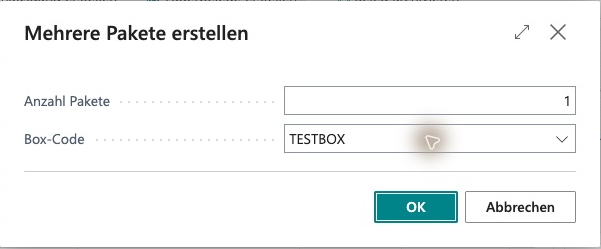
2. In the preliminary **Create Multiple Packages** dialog, select a suitable optional **Box Code** if needed and choose **OK** to start the analysis. The count shown there is not the final recommendation; if an item does not fit the selected box, the packing check reports it, and you select a different box or correct the master data.
3. Review the separately calculated recommendation, including the package count and reason.
4. Choose **Yes** to create the packages locally or **No** to cancel. Smart Packing does not book a GLS shipment; transmission to GLS is a separate step.

<figure><img src="https://4240336237-files.gitbook.io/~/files/v0/b/gitbook-x-prod.appspot.com/o/spaces%2F1xU0AaWQXNPVz5ZfC18N%2Fuploads%2FBoyycadSiyG5Xm5o3jRA%2Fgls-workflow-20261020-22-smart-packing-vorschlag.png?alt=media" alt="Smart Packing message recommending 1 package because all items fit into one package, with Yes and No buttons"><figcaption><p>Smart Packing recommendation without a selected Box Code: 1 package, because all items fit into one package. Yes creates the packages locally, No cancels; the count applies only to this example.</p></figcaption></figure>

### Box selection and dimension checks

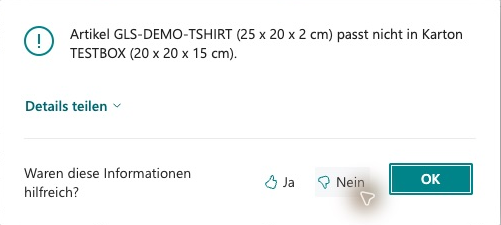
Choose the box in the preliminary dialog. In this example, TESTBOX is too small for the item: check the dimensions and select a suitable box before planning again.

<figure><img src="https://4240336237-files.gitbook.io/~/files/v0/b/gitbook-x-prod.appspot.com/o/spaces%2F1xU0AaWQXNPVz5ZfC18N%2Fuploads%2FJGKEwP65GuDTamOlS6tN%2Fgls-workflow-20261020-20-smart-packing-karton.png?alt=media" alt="Create Multiple Packages dialog opened from Smart Packing, with Box Code TESTBOX and a displayed count of 1"><figcaption><p>Preliminary Create Multiple Packages dialog opened from Smart Packing with Box Code TESTBOX; the count of 1 shown here is not the Smart Packing recommendation. TESTBOX is too small for the T-shirt in this example, as the following packing check shows.</p></figcaption></figure>

<figure><img src="https://4240336237-files.gitbook.io/~/files/v0/b/gitbook-x-prod.appspot.com/o/spaces%2F1xU0AaWQXNPVz5ZfC18N%2Fuploads%2FbJENO9NWXNCUZsLRnnjD%2Fgls-workflow-20261020-21-packpruefung-karton.png?alt=media" alt="Error message: GLS-DEMO-TSHIRT at 25 × 20 × 2 cm does not fit TESTBOX at 20 × 20 × 15 cm"><figcaption><p>Local packing check: item GLS-DEMO-TSHIRT (25 × 20 × 2 cm) does not fit box TESTBOX (20 × 20 × 15 cm). Select a suitable Box Code or correct the master data.</p></figcaption></figure>

### Fixed number

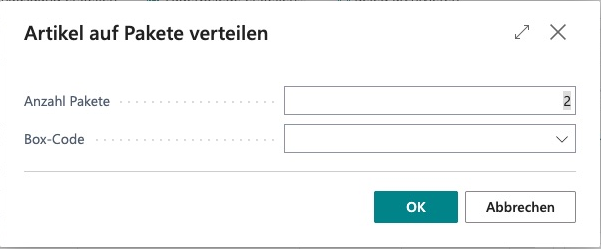
Choose **Distribute Items to Packages**, enter the **Number of Packages** and, if needed, select a **Box Code**. The dialog suggests 2 packages by default. For exactly one package, set the number to 1. The app creates both the package headers and the related item lines. If the number is not sufficient because of weight or item limits, increase it or adjust the box and master data.

The action replaces any existing packages of the order that have not yet been uploaded; it does not just add to their content. Packages that have already been uploaded are not removed.

**Create Multiple Packages** is a separate alternative for empty package headers. Maintain their item lines and quantities afterwards; this action alone does not produce a fully filled package ready for shipping.

<figure><img src="https://4240336237-files.gitbook.io/~/files/v0/b/gitbook-x-prod.appspot.com/o/spaces%2F1xU0AaWQXNPVz5ZfC18N%2Fuploads%2FPDAxM7Y8MwkTceFv2s7g%2Fgls-workflow-20261020-19-paketverteilung-zwei.png?alt=media" alt="Distribute Items to Packages dialog with Number of Packages set to 2 and an empty Box Code"><figcaption><p>Distribute Items to Packages dialog with Number of Packages 2 and an empty optional Box Code. OK creates package headers and assigned item lines locally but does not transmit anything to GLS.</p></figcaption></figure>

<figure><img src="https://4240336237-files.gitbook.io/~/files/v0/b/gitbook-x-prod.appspot.com/o/spaces%2F1xU0AaWQXNPVz5ZfC18N%2Fuploads%2FhjPBVwSAeyuFzxf46WoU%2Fgls-workflow-20261020-25-paketinhalt-vor-versand.png?alt=media" alt="Package item lines: GLS-DEMO-TSHIRT quantity 10 at 0.25 per unit and GLS-DEMO-HOODIE quantity 10 at 0.75 per unit"><figcaption><p>Package item lines of the open demo package: GLS-DEMO-TSHIRT (quantity 10, 0.25 per unit) and GLS-DEMO-HOODIE (quantity 10, 0.75 per unit), 10 kg item weight in total. Check actual weight, quantities and units before transmitting.</p></figcaption></figure>

### What the planning takes into account

* Weight limit from the selected box or from **Default Max Package Weight (kg)**
* Items with **GLS Package Separately**
* **GLS Max. Qty. per Package**
* Whether individual items fit into the box based on their dimensions and unit weight

The planning is not full three-dimensional packing optimization. Check the recommendation against your actual packaging.

## Uploading multiple packages of an order

```mermaid
flowchart LR
  A["One order"] --> P["Two open packages"]
  P --> S["One GLS shipment"]
  S --> L["Two labels"]
```

**Upload Packages to GLS** sends all pending packages of the order as **a single shipment with multiple parcels**.

{% hint style="warning" %}
Product, service and incoterm apply to the entire shipment and are taken from the **first package**. Make sure these details are correct on the first package. If packages need different products or services, upload them separately.
{% endhint %}

Check: each uploaded package is marked as uploaded on its package card and has a track ID.

## Batch processing with GLS Generate Labels

The batch report **GLS Generate Labels** processes multiple orders one after another: it creates packages and uploads them for each order.

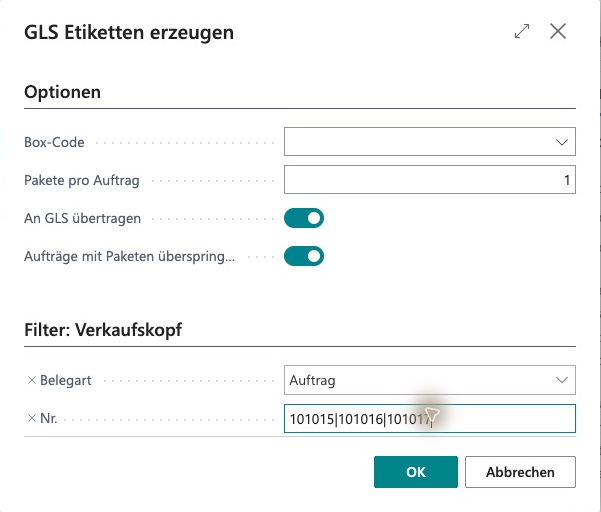
| Option                    | Meaning                                | Default       |
| ------------------------- | -------------------------------------- | ------------- |
| **Box Code**              | Box for the packages to be created     | not prefilled |
| **Packages per Order**    | Number of packages per order           | 1             |
| Transmit to GLS           | Transmit packages to GLS immediately   | on            |
| Skip Orders with Packages | Skip orders that already have packages | on            |

### Procedure

1. Select the orders in the **Sales Orders** list. Choose **GLS** → **Generate Labels**. The **GLS Generate Labels** dialog opens with your selection.
2. Check **Box Code**, **Packages per Order** and both toggles.
3. Run the report.
4. Afterwards, check in **GLS Packages** which packages have been uploaded and have a track ID.

{% hint style="danger" %}
Because **Transmit to GLS** is enabled by default, real GLS shipments are created as soon as you run the report in production. Test the report in the sandbox first. Keep **Skip Orders with Packages** enabled to avoid duplicate packages.
{% endhint %}

<figure><img src="https://4240336237-files.gitbook.io/~/files/v0/b/gitbook-x-prod.appspot.com/o/spaces%2F1xU0AaWQXNPVz5ZfC18N%2Fuploads%2Fx7NmDLBiA7vikppQGCrs%2Fgls-workflow-20261020-16-stapeloptionen.png?alt=media" alt="GLS Generate Labels: Box Code empty, Packages per Order 1, Transmit to GLS and Skip Orders with Packages on, No. filter 101015|101016|101017"><figcaption><p>Check the package count, order filter and both switches. Transmit to GLS and Skip Orders with Packages are enabled in this example; OK would start processing.</p></figcaption></figure>

### If an order in the batch fails

* Check the affected order individually: address, weight, incoterm.
* Check the GLS response in the **API Call Log**.
* Check any packages that were already created individually. **Skip Orders with Packages** also skips orders with existing packages that have not yet been uploaded. Running the report again with this option therefore does not automatically fix such packages.
* If the GLS result is unclear, first find out whether a shipment already exists before uploading again.


---

# Agent Instructions
This documentation is published with GitBook. GitBook is the documentation platform designed so that both humans and AI agents can read, navigate, and reason over technical content effectively. Learn more at gitbook.com.

## Querying This Documentation
If you need additional information that is not directly available in this page, you can query the documentation by asking a question.

Perform an HTTP GET request on the following URL with the `ask` and `goal` query parameters:

```
GET https://docs.solutioo.de/gls-connector/gls-connector_en_us/daily-work/multi-package-and-batch-processing.md?ask=<question>&goal=<user_goal>
```

`ask` is the immediate question: it should be specific, self-contained, and written in natural language.
`goal` is what the user is ultimately trying to achieve, the reason they need the answer. Sharing it helps GitBook give you a better, more relevant answer. A goal is most helpful when it describes the outcome the user wants rather than restating the question. For example, with `ask=how do I create an API token`, a goal like `automate deployments from our CI pipeline` lets GitBook tailor the answer to that use case.

The response will contain a direct answer to the question and relevant excerpts and sources from the documentation.

Use this mechanism when the answer is not explicitly present in the current page, you need clarification or additional context, or you want to retrieve related documentation sections.