> For the complete documentation index, see [llms.txt](https://docs.solutioo.de/llms.txt). Markdown versions of documentation pages are available by appending `.md` to page URLs; this page is available as [Markdown](https://docs.solutioo.de/gls-connector/gls-connector_en_us/quick-start.md).

# Quick Start

Your first complete GLS shipment from a sales order in the sandbox, with verification and the subsequent switch to production.

In this procedure, you ship a sales order from start to finish: create packages, transmit them to GLS, check the label and print it. Work in a **Business Central sandbox with GLS sandbox credentials**. Switching to production follows at the end as a separate step.

{% hint style="info" %}
The screenshots captured on 20 October 2026 show existing demo documents in GLS Connector 26.13.40.1015, using the German interface. Personal details and shipping identifiers are redacted. Different demo documents illustrate the individual steps; the instructions use the English action names.
{% endhint %}

## Prerequisites

* The app is installed, with the **GLS Super User** (setup) or **GLS Integration User** (shipping) permission set.
* [Setup](/gls-connector/gls-connector_en_us/setup.md) completed with the Sandbox environment and a successful **Test Connection**.
* At least one [GLS box](/gls-connector/gls-connector_en_us/setup/boxes-and-items.md) or a default maximum weight.
* A test customer with a complete **domestic** ship-to address and an item with a maintained weight. Use fictitious test data or the test addresses provided by GLS.
* Label format **PNG** if you want to test integrated printing.

## Procedure

{% stepper %}
{% step %}

#### Prepare the sales order

1. Create a sales order for the test customer.
2. Enter one or more item lines.
3. Check the ship-to address: street, street number, ZIP code, city and country must be complete.

<figure><img src="https://4240336237-files.gitbook.io/~/files/v0/b/gitbook-x-prod.appspot.com/o/spaces%2F1xU0AaWQXNPVz5ZfC18N%2Fuploads%2FatJKbx4TQnihYH8PAKYz%2Fgls-workflow-20261020-17-auftrag-artikelzeilen.png?alt=media" alt="Sales order lines with GLS Demo T-Shirt, quantity 20, and GLS Demo Hoodie, quantity 20"><figcaption><p>Item lines of an existing demo sales order: GLS Demo T-Shirt and GLS Demo Hoodie, each with quantity 20.</p></figcaption></figure>
{% endstep %}

{% step %}

#### Create packages

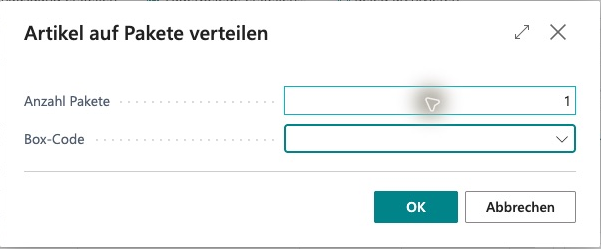
1. On the sales order, choose **GLS Shipping** → **Distribute Items to Packages**.
2. Explicitly set **Number of Packages** to **1**; the dialog initially suggests 2.
3. If required, select a suitable **Box Code** and confirm with **OK**.

The app creates the package and its item lines with the distributed quantities. No package needs to exist beforehand, and you do not need to add the same items again. Nothing is transmitted to GLS yet.

This action replaces any existing packages of the order that have not been uploaded yet. Therefore, start the quick start with a new test order. Packages that have already been uploaded are kept.

For automatic suggestions, use **Smart Packing** later. **Create Multiple Packages**, in contrast, initially creates empty package headers. Details: [Multi-Package and Batch Processing](/gls-connector/gls-connector_en_us/daily-work/multi-package-and-batch-processing.md).

<figure><img src="https://4240336237-files.gitbook.io/~/files/v0/b/gitbook-x-prod.appspot.com/o/spaces%2F1xU0AaWQXNPVz5ZfC18N%2Fuploads%2FuILBomIQRwByIEa3jjD6%2Fgls-workflow-20261020-19b-paketverteilung-eins.png?alt=media" alt="Distribute Items to Packages dialog with Number of Packages set to 1 and an empty Box Code"><figcaption><p>Distribute Items to Packages dialog with Number of Packages 1, as described in the quick start; the optional Box Code stays empty. OK creates the package with its assigned item lines locally, without transmitting to GLS.</p></figcaption></figure>
{% endstep %}

{% step %}

#### Check the packages

1. Open the created packages, for example through **GLS Packages**.
2. Check the items and quantities, recipient, actual total weight, box, product and service.
3. Correct the weight if it does not match the actual package.

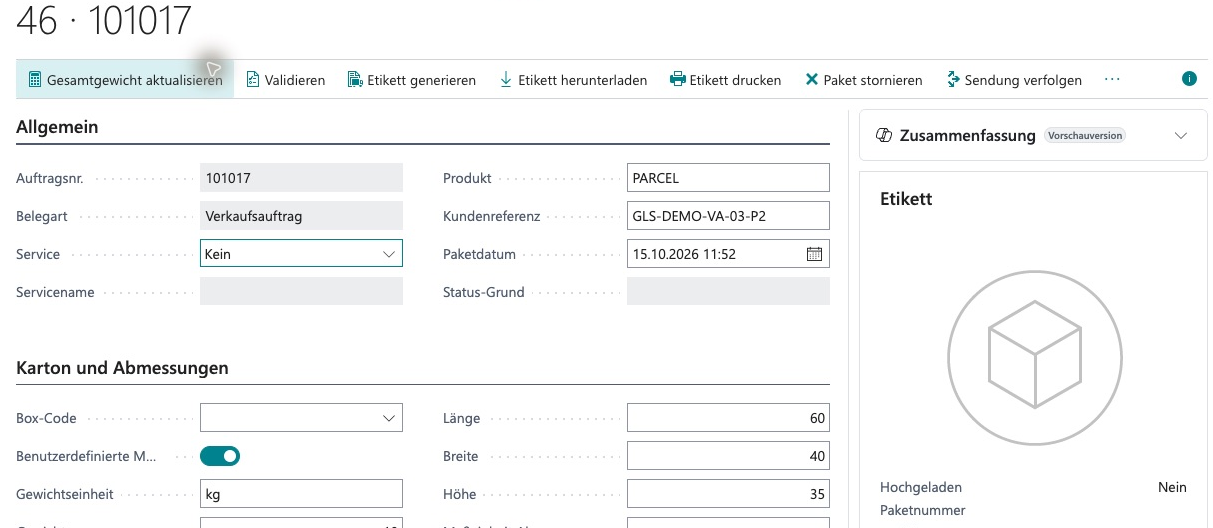
<figure><img src="https://4240336237-files.gitbook.io/~/files/v0/b/gitbook-x-prod.appspot.com/o/spaces%2F1xU0AaWQXNPVz5ZfC18N%2Fuploads%2FHHEyxnJGx2LASEluG56n%2Fgls-workflow-20261020-24-paketkarte-vor-versand.png?alt=media" alt="Package card 46, order 101017: PARCEL, reference GLS-DEMO-VA-03-P2, 60 × 40 × 35 cm, Uploaded No, label placeholder"><figcaption><p>Open demo package card 46 for order 101017 with product PARCEL, no additional service, customer reference GLS-DEMO-VA-03-P2 and dimensions 60 × 40 × 35 cm; Uploaded is No and the label area shows a placeholder. Generate Label creates a new GLS shipment for this package.</p></figcaption></figure>

<figure><img src="https://4240336237-files.gitbook.io/~/files/v0/b/gitbook-x-prod.appspot.com/o/spaces%2F1xU0AaWQXNPVz5ZfC18N%2Fuploads%2FhjPBVwSAeyuFzxf46WoU%2Fgls-workflow-20261020-25-paketinhalt-vor-versand.png?alt=media" alt="Package item lines: GLS-DEMO-TSHIRT quantity 10 at 0.25 per unit and GLS-DEMO-HOODIE quantity 10 at 0.75 per unit"><figcaption><p>Package item lines of the open demo package: GLS-DEMO-TSHIRT (quantity 10, 0.25 per unit) and GLS-DEMO-HOODIE (quantity 10, 0.75 per unit), 10 kg item weight in total. Check actual weight, quantities and units before transmitting.</p></figcaption></figure>
{% endstep %}

{% step %}

#### Transmit to GLS

1. On the sales order, choose **Upload Packages to GLS**.
2. Before transmission, the app checks, among other things, the weight (fixed upper limit of 40 kg and box maximums), the incoterm for shipments crossing a customs border, and the pickup date for pickup services.
3. All open packages of the order are transmitted to GLS as one shipment. If there are several open packages, the shipment contains several parcels.
   {% endstep %}

{% step %}

#### Check the result

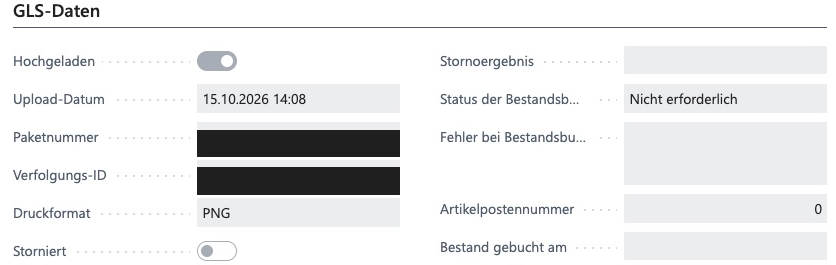
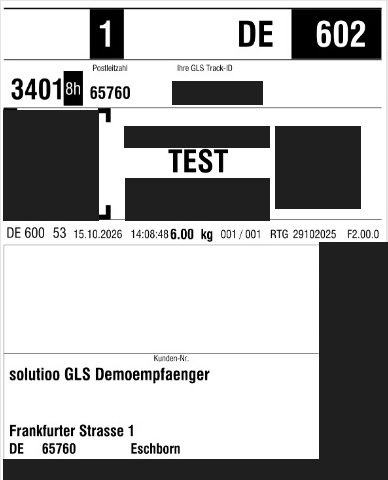
1. Open the package card. **Uploaded** is selected, and **Parcel Number**, **Track ID** and **Upload Date** are filled in. With PNG, you see the image in the **Label** section.
2. Choose **Download Label** and check the address, product and legibility.
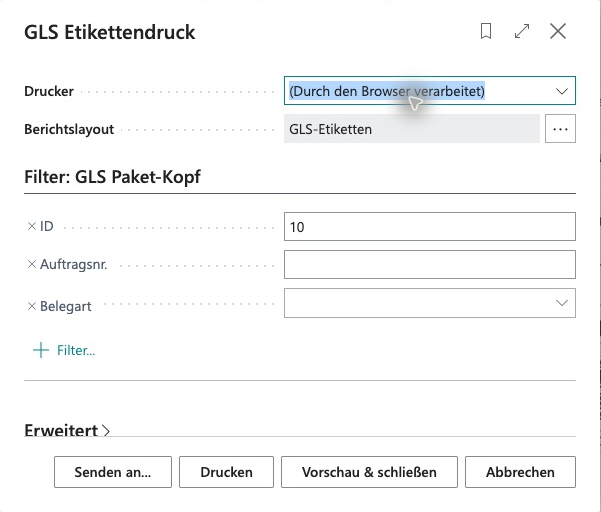
3. On the sales order, choose **Print GLS Labels** and print through your usual Business Central print option.

<figure><img src="https://4240336237-files.gitbook.io/~/files/v0/b/gitbook-x-prod.appspot.com/o/spaces%2F1xU0AaWQXNPVz5ZfC18N%2Fuploads%2FQxZcHKOESmjZlD7pScvX%2Fgls-workflow-20261020-14-uebertragungsstatus.png?alt=media" alt="GLS data of a test package: Uploaded on, Upload Date 15.10.2026 14:08, Print Format PNG; Parcel Number and Track ID redacted"><figcaption><p>GLS data of an existing test package: Uploaded is on, Upload Date 15.10.2026 14:08, Print Format PNG, not cancelled. Parcel Number and Track ID are present but redacted.</p></figcaption></figure>

<figure><img src="https://4240336237-files.gitbook.io/~/files/v0/b/gitbook-x-prod.appspot.com/o/spaces%2F1xU0AaWQXNPVz5ZfC18N%2Fuploads%2FYZMkljAhmJl4zqPdYpwX%2Fgls-workflow-20261020-11-etikettendruck-dialog.png?alt=media" alt="Stored-label print request page with browser-handled printer, GLS labels layout, ID filter 10 and the Print and Preview &#x26; Close buttons"><figcaption><p>Stored-label print dialog with a browser-handled printer, the GLS labels layout and a package filter. Preview &#x26; Close opens the preview; Print starts the selected print method.</p></figcaption></figure>

<figure><img src="https://4240336237-files.gitbook.io/~/files/v0/b/gitbook-x-prod.appspot.com/o/spaces%2F1xU0AaWQXNPVz5ZfC18N%2Fuploads%2FoJpl9YzwJntOjIwU3YdD%2Fgls-workflow-20261020-12-label-vorschau.png?alt=media" alt="Preview of an existing GLS label marked TEST with demo recipient and test address; sender, tracking value, barcodes and QR codes are masked"><figcaption><p>Excerpt of an existing GLS TEST label dated 15 October 2026 in the Business Central preview, showing the demo recipient and GLS test address. Sender and contact details, the tracking value, barcodes and QR codes are redacted.</p></figcaption></figure>
{% endstep %}

{% step %}

#### Practice cancellation

On a test package, choose **Cancel Parcel** and confirm. If GLS responds with CANCELLED or CANCELLATION\_PENDING, the package is marked as cancelled locally. This way, you learn the procedure before you need it in production.
{% endstep %}
{% endstepper %}

## English names in the screenshots

The example images show the German interface. Use these equivalents when following the English instructions.

| English action               | German caption in the images      |
| ---------------------------- | --------------------------------- |
| GLS Shipping                 | GLS-Versand                       |
| Distribute Items to Packages | Artikel auf Pakete verteilen      |
| Number of Packages           | Anzahl Pakete                     |
| Upload Packages to GLS       | Pakete an GLS übertragen          |
| Generate Label               | Etikett generieren                |
| Download Label               | Etikett herunterladen             |
| Print Label                  | Etikett drucken                   |
| Reprint Label                | Etikett erneut drucken            |
| Print GLS Labels             | GLS-Etiketten drucken             |
| GLS Generate Labels          | GLS Etiketten erzeugen            |
| Transmit to GLS              | An GLS übertragen                 |
| Skip Orders with Packages    | Aufträge mit Paketen überspringen |

## If something goes wrong

| Situation                                      | What to do                                                                                                                                   |
| ---------------------------------------------- | -------------------------------------------------------------------------------------------------------------------------------------------- |
| Transmission is rejected with a weight message | Correct the weight or the box selection; if necessary, distribute the items across several packages                                          |
| Message about a missing incoterm               | Check the ship-to address; for an international shipment, set the incoterm on the package card                                               |
| Timeout or unclear response                    | Do **not** transmit again immediately. First check the package card, the API call log and GLS                                                |
| No image in batch printing                     | Use the PNG label format; see [Labels, Printing and Tracking](/gls-connector/gls-connector_en_us/daily-work/labels-printing-and-tracking.md) |

More cases: [Monitoring and Troubleshooting](/gls-connector/gls-connector_en_us/monitoring-and-troubleshooting.md).

## Switching to production

Verify production separately; a successful sandbox test does not carry over automatically.

1. Install the app in the production environment and assign the permissions.
2. Open the wizard, select the production environment and confirm the warning.
3. Enter the **new** Client ID, Client Secret and Contact ID of your production credentials. Empty fields would keep the previous values.
4. Choose **Test Connection** and then **Finish**.
5. Create boxes and master data if they do not exist yet.
6. Before the first real shipment, confirm with GLS that the products and services you use are approved.
7. Then ship a first real order in a controlled way and check the label, printing and track ID.


---

# Agent Instructions
This documentation is published with GitBook. GitBook is the documentation platform designed so that both humans and AI agents can read, navigate, and reason over technical content effectively. Learn more at gitbook.com.

## Querying This Documentation
If you need additional information that is not directly available in this page, you can query the documentation by asking a question.

Perform an HTTP GET request on the following URL with the `ask` and `goal` query parameters:

```
GET https://docs.solutioo.de/gls-connector/gls-connector_en_us/quick-start.md?ask=<question>&goal=<user_goal>
```

`ask` is the immediate question: it should be specific, self-contained, and written in natural language.
`goal` is what the user is ultimately trying to achieve, the reason they need the answer. Sharing it helps GitBook give you a better, more relevant answer. A goal is most helpful when it describes the outcome the user wants rather than restating the question. For example, with `ask=how do I create an API token`, a goal like `automate deployments from our CI pipeline` lets GitBook tailor the answer to that use case.

The response will contain a direct answer to the question and relevant excerpts and sources from the documentation.

Use this mechanism when the answer is not explicitly present in the current page, you need clarification or additional context, or you want to retrieve related documentation sections.