> For the complete documentation index, see [llms.txt](https://docs.solutioo.de/llms.txt). Markdown versions of documentation pages are available by appending `.md` to page URLs; this page is available as [Markdown](https://docs.solutioo.de/gls-connector/gls-connector_en_us/setup.md).

# Setup

Complete the five steps of the GLS Connector Setup wizard and test the connection to GLS.

The **GLS Connector Setup** wizard guides you through the basic setup in five steps. Afterwards, the company is connected to your GLS account and ready for the first test shipment. You need the **GLS Super User** permission set.

{% hint style="info" %}
The screenshots dated 20.10.2026 show our demo sandbox with GLS Connector 26.13.40.1015, based on 26.13.40, in the German user interface. Credentials have been removed and the Contact ID is redacted. Depending on your window size, the layout may differ.
{% endhint %}

## Open the wizard

* Search for **Assisted Setup** and choose **Set up the GLS Connector**, or
* open **GLS Configuration** and choose the **Assisted Setup** action.

Use **Next** and **Back** to move between the steps. If not all fields are visible, scroll down within the wizard. You can also open it directly through search (Alt+Q) with **GLS Connector Setup**.

## The five steps

{% stepper %}
{% step %}

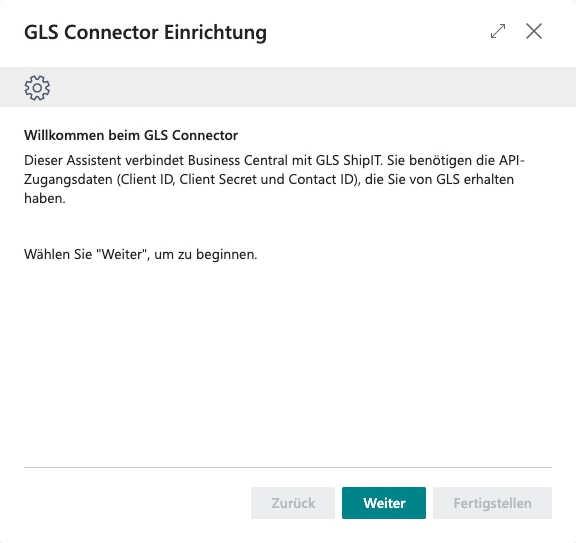
#### Welcome to the GLS Connector

The wizard explains what will be set up. Have your GLS credentials ready.

<figure><img src="https://4240336237-files.gitbook.io/~/files/v0/b/gitbook-x-prod.appspot.com/o/spaces%2F1xU0AaWQXNPVz5ZfC18N%2Fuploads%2FM5ldgzDBjfkFJRAG8DS6%2Fgls-workflow-20261020-01-assistent-willkommen.png?alt=media" alt="Welcome page of the GLS Connector wizard in the German user interface, with the „Weiter“ (Next) button."><figcaption><p>The wizard starts with the Welcome to the GLS Connector page, shown here in German. Choose Next to get started.</p></figcaption></figure>
{% endstep %}

{% step %}

#### API Connection

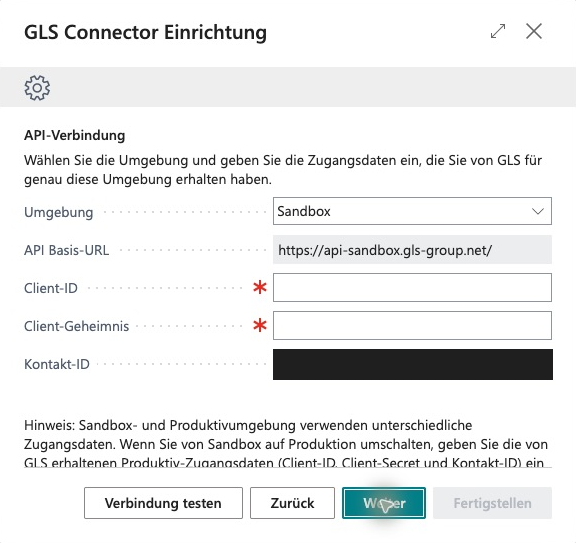
1. In the **Environment** field, select the sandbox first. The **API Base URL** is set to match the environment.
2. Enter the **Client ID**, **Client Secret** and **Contact ID** from your GLS sandbox credentials.
3. Choose **Test Connection**.

**Test Connection** saves your entries and then attempts to sign in to GLS. No label and no shipment is created. The action is only visible in this step.

<figure><img src="https://4240336237-files.gitbook.io/~/files/v0/b/gitbook-x-prod.appspot.com/o/spaces%2F1xU0AaWQXNPVz5ZfC18N%2Fuploads%2F3tOY78yxCbSAPtmXjXag%2Fgls-workflow-20261020-02-api-verbindung.png?alt=media" alt="API Connection page in the German user interface with Environment set to Sandbox, the API Base URL, empty Client ID and Client Secret fields, and a redacted Contact ID."><figcaption><p>Enter your own credentials on the API Connection page. In the German-language screenshot, Client ID and Client Secret are empty and the Contact ID is redacted.</p></figcaption></figure>
{% endstep %}

{% step %}

#### Alternative Shipper Address

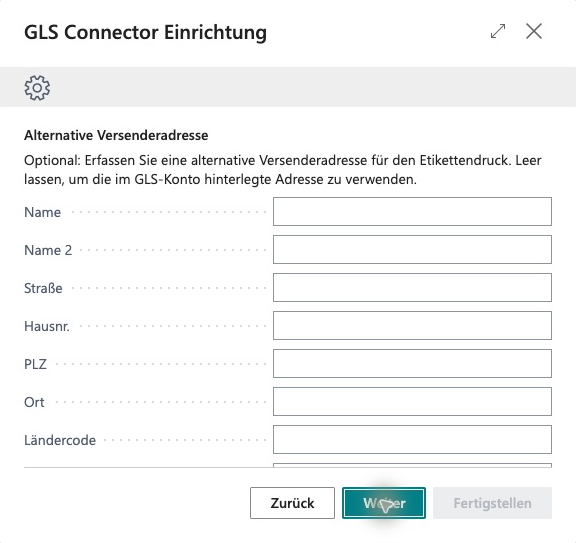
Optionally, enter a different shipper address: **Name**/**Name 2**, **Street**/**Street No.**, **ZIP Code**/**City**/**Country Code** and **E-Mail**/**Phone No.** Use this step if your goods are not shipped from the company address.

<figure><img src="https://4240336237-files.gitbook.io/~/files/v0/b/gitbook-x-prod.appspot.com/o/spaces%2F1xU0AaWQXNPVz5ZfC18N%2Fuploads%2F9XxL0oNt3HsskFsP4W4x%2Fgls-workflow-20261020-03-versenderadresse.png?alt=media" alt="Upper part of the optional alternative shipper address in the German user interface, with empty input fields for name and address."><figcaption><p>If required, enter the name and address of your alternative shipper address. The German-language screenshot shows empty input fields.</p></figcaption></figure>

<figure><img src="https://4240336237-files.gitbook.io/~/files/v0/b/gitbook-x-prod.appspot.com/o/spaces%2F1xU0AaWQXNPVz5ZfC18N%2Fuploads%2Fv3GNNwN54VUxQq3vFWJ8%2Fgls-workflow-20261020-03b-versender-kontakt.png?alt=media" alt="Address section scrolled down in the German user interface, with empty fields for Country Code, E-Mail and Phone No."><figcaption><p>Scroll down to enter the Country Code, E-Mail and Phone No. In the German-language screenshot, all fields are empty.</p></figcaption></figure>
{% endstep %}

{% step %}

#### Label Options and Features

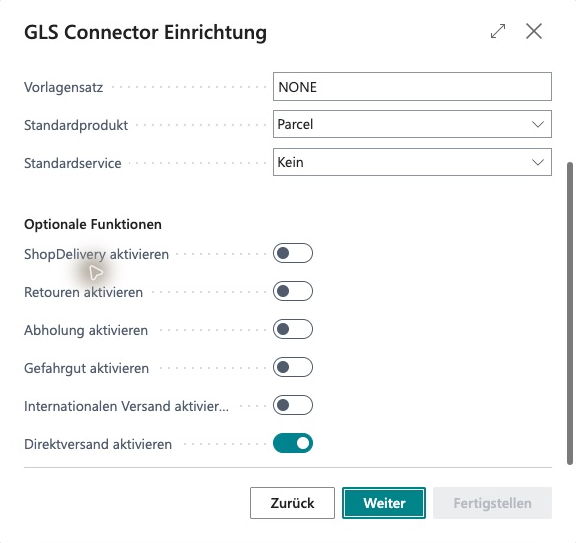
Select the **Label Format** (PDF, PNG or Zebra), the **Template Set**, and the default product and service. Only enable features that your GLS contract actually covers, for example **Enable Hazardous Goods**, **Enable Returns** or **Enable Pickup**. The toggles are located under **Optional Features**.

<figure><img src="https://4240336237-files.gitbook.io/~/files/v0/b/gitbook-x-prod.appspot.com/o/spaces%2F1xU0AaWQXNPVz5ZfC18N%2Fuploads%2FPR3j9wBBm4ex5dYcPJfV%2Fgls-workflow-20261020-04-etiketten-und-funktionen.png?alt=media" alt="Label settings in the German user interface with the example values PNG and NONE, default product Parcel and default service „Kein“ (None)."><figcaption><p>Define the label settings and the default product and default service. The values shown (PNG, NONE, Parcel and None, displayed as „Kein“ in German) are only an example.</p></figcaption></figure>

<figure><img src="https://4240336237-files.gitbook.io/~/files/v0/b/gitbook-x-prod.appspot.com/o/spaces%2F1xU0AaWQXNPVz5ZfC18N%2Fuploads%2FM0HDuAQ0HlUxvDnXJIyd%2Fgls-workflow-20261020-04b-optionale-funktionen.png?alt=media" alt="Optional Features section in the German user interface with toggles for ShopDelivery, returns, pickup, hazardous goods, international shipping and direct shipments."><figcaption><p>Scroll to the Optional Features section to turn individual features on or off. The toggles do not replace contractual approval by GLS.</p></figcaption></figure>
{% endstep %}

{% step %}

#### You are all set!

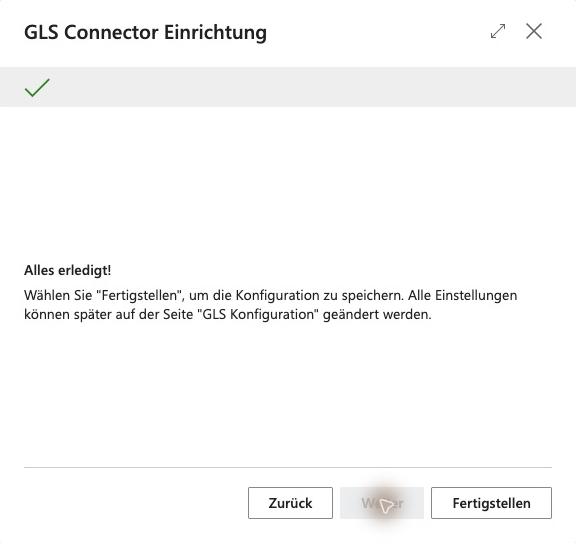
Choose **Finish** to save the setup. The assisted setup is marked as completed.

<figure><img src="https://4240336237-files.gitbook.io/~/files/v0/b/gitbook-x-prod.appspot.com/o/spaces%2F1xU0AaWQXNPVz5ZfC18N%2Fuploads%2Fl5uZxprmCnAi53Cbb28G%2Fgls-workflow-20261020-05-assistent-abschluss.png?alt=media" alt="Last page of the wizard in the German user interface with the message „Alles erledigt!“ (You are all set!) and the „Fertigstellen“ (Finish) button."><figcaption><p>The last page displays You are all set! (shown in German as „Alles erledigt!“). Choose Finish to save your settings and complete the wizard.</p></figcaption></figure>
{% endstep %}
{% endstepper %}

## Check the result

* The connection test was successful.
* In **GLS Configuration**, Environment, Label Format and Default Product are set as selected.
* In **Assisted Setup**, **Set up the GLS Connector** is marked as completed.

## If the connection test fails

1. Check that the credentials belong to the selected environment. Sandbox credentials do not work in production, and vice versa.
2. Check the Client ID and Client Secret for leading or trailing spaces.
3. Check the HTTP permission in the extension settings. If there is a matching entry in the **API Call Log**, read the response from GLS.
4. If sign-in errors persist, contact GLS to have your credentials confirmed.

## Sandbox, production and stored credentials

* Use **separate GLS credentials** for sandbox and production.
* When you switch the environment, the app sets the matching API address and warns you that the previous credentials would continue to be used.
* **Leaving Client ID or Client Secret empty keeps the previously stored values.** Therefore, always enter the new values after switching the environment.
* Credentials are stored per company in the app's protected storage.

## Continue with the setup

* [Setup Field Reference](/gls-connector/gls-connector_en_us/setup/field-reference.md): the most important configuration fields
* [Prepare Boxes and Items](/gls-connector/gls-connector_en_us/setup/boxes-and-items.md): a prerequisite for meaningful packages
* [Tariffs and Shipping Costs](/gls-connector/gls-connector_en_us/setup/tariffs-and-shipping-costs.md): optional, for local shipping cost calculation

Next: [Quick Start](/gls-connector/gls-connector_en_us/quick-start.md).


---

# Agent Instructions
This documentation is published with GitBook. GitBook is the documentation platform designed so that both humans and AI agents can read, navigate, and reason over technical content effectively. Learn more at gitbook.com.

## Querying This Documentation
If you need additional information that is not directly available in this page, you can query the documentation by asking a question.

Perform an HTTP GET request on the following URL with the `ask` and `goal` query parameters:

```
GET https://docs.solutioo.de/gls-connector/gls-connector_en_us/setup.md?ask=<question>&goal=<user_goal>
```

`ask` is the immediate question: it should be specific, self-contained, and written in natural language.
`goal` is what the user is ultimately trying to achieve, the reason they need the answer. Sharing it helps GitBook give you a better, more relevant answer. A goal is most helpful when it describes the outcome the user wants rather than restating the question. For example, with `ask=how do I create an API token`, a goal like `automate deployments from our CI pipeline` lets GitBook tailor the answer to that use case.

The response will contain a direct answer to the question and relevant excerpts and sources from the documentation.

Use this mechanism when the answer is not explicitly present in the current page, you need clarification or additional context, or you want to retrieve related documentation sections.