> For the complete documentation index, see [llms.txt](https://docs.solutioo.de/llms.txt). Markdown versions of documentation pages are available by appending `.md` to page URLs; this page is available as [Markdown](https://docs.solutioo.de/shopware/shopware6_en_us/automation-and-schedules/error-handling-in-automatic-processes.md).
# Error Handling in Automatic Processes
Learn how to detect and resolve errors in automatic processes.
Automatic processes can fail for a number of reasons. This page explains how to detect and resolve errors.
## 1. Error Types
:wifi::triangle-exclamation:
Connection errors
API connection interrupted
Timeout on requests
Authentication problems
:database::triangle-exclamation:
Data errors
Missing mandatory fields
Invalid data formats
Mapping problems
:sensor-triangle-exclamation:
System errors
Shopware server unreachable
BC services unavailable
Resource bottlenecks
## 2. Detecting Errors
### 2.1 Job Queue
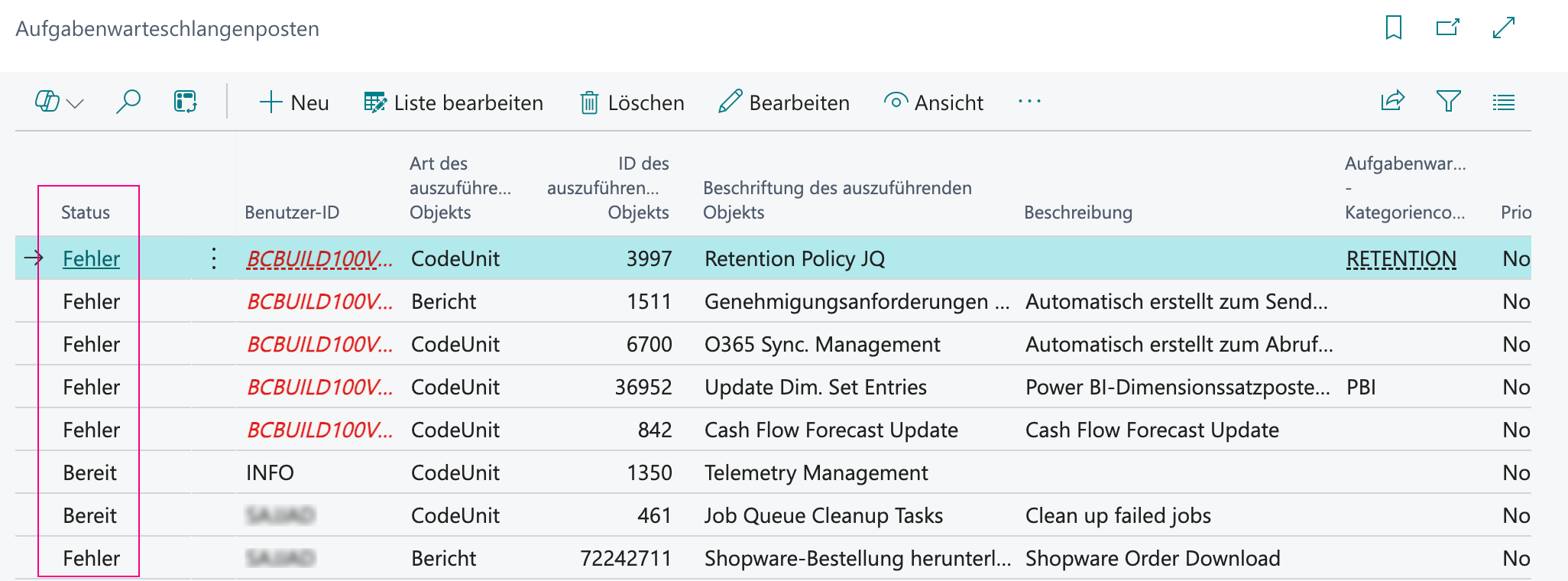
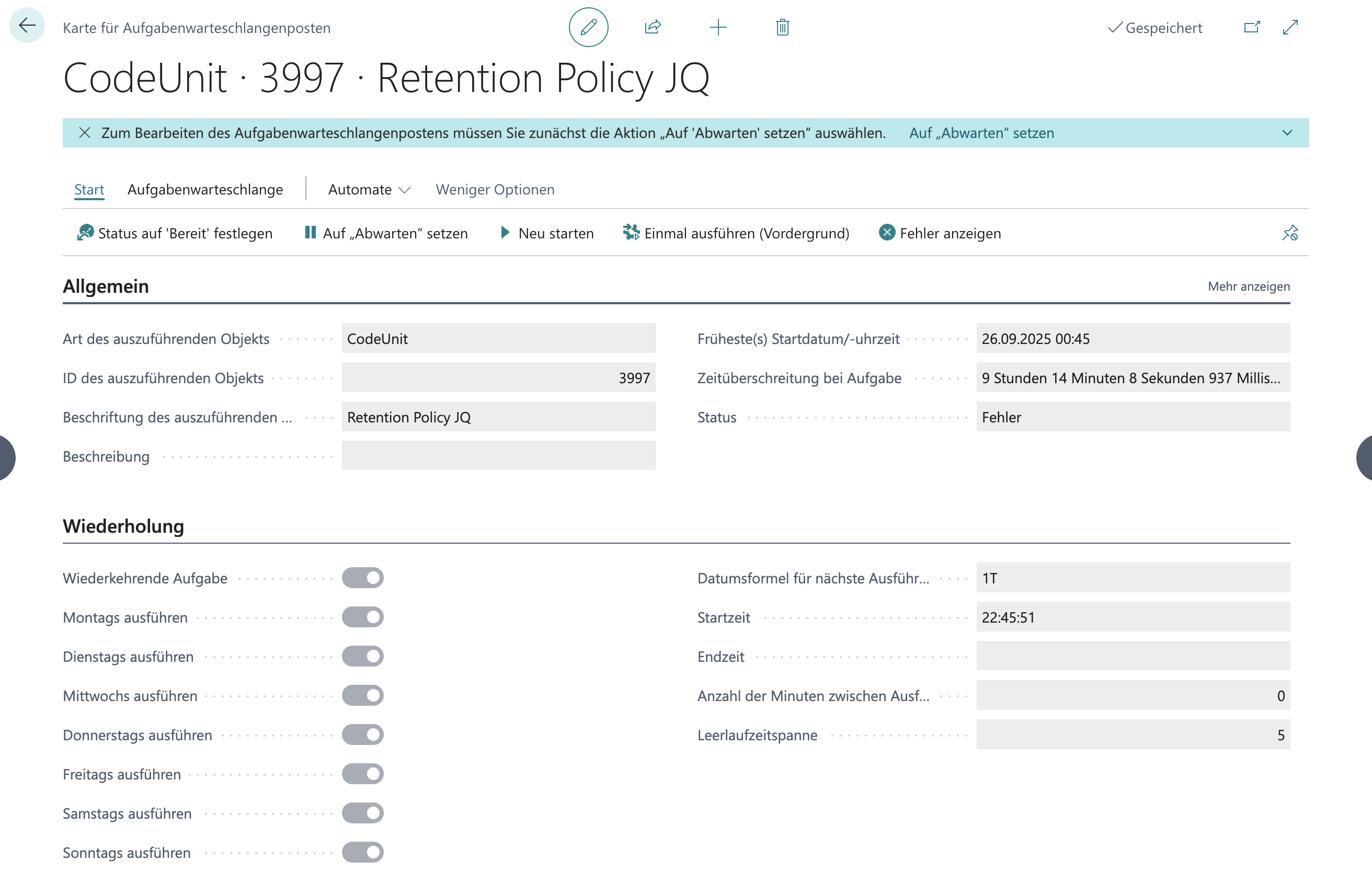
Open the [*Job Queue Entries*](/shopware/shopware6_en_us/automation-and-schedules/job-queue-entries.md) page. You will find the current status in the *"Status"* column. If it shows *"Error"*, click it directly. A new window, *"Job Queue Entry Card"*, opens.
Then investigate the cause of the error. Several supporting functions are available for this, such as the *“Show Error”* button.
### 2.2 Activity Log
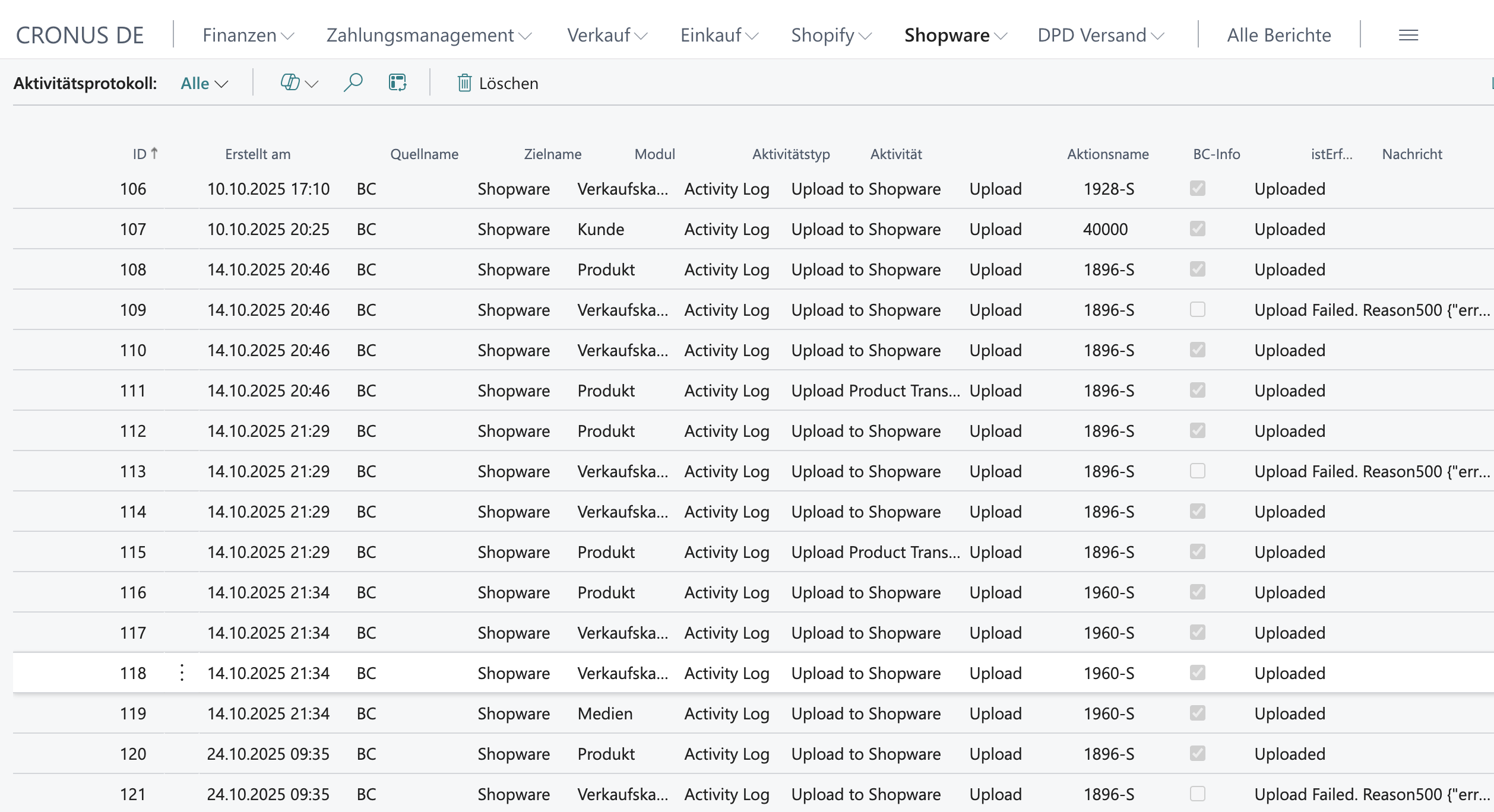
> Follow this path: *"Shopware"* :right: *"Activity Log"*
Filter for errors and analyze them.
### 2.3 API Call Log
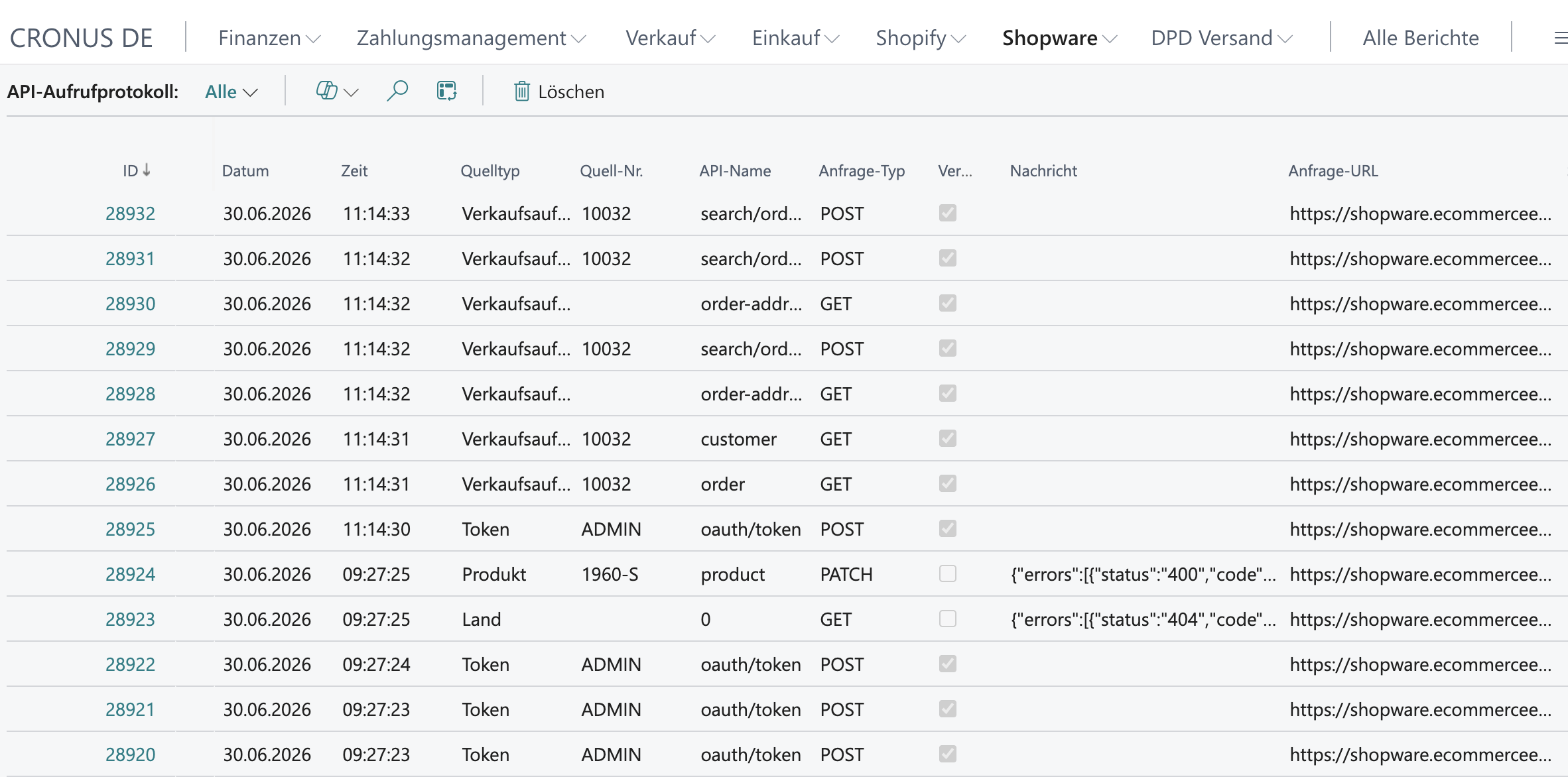
> Follow this path: *"Shopware"* :right: *"API Call Log"*
For a detailed analysis, review the request and the response. This lets you pinpoint the cause of the error.
## 3. Resolving Errors
General procedure
Identify the error
Analyze the cause
Fix the problem
Run the task again
Verify success
Resolving connection errors
Check the API connection in the settings.
Run a connection test
Check the API credentials.
Check the network connection.
Resolving data errors
Identify the faulty record.
Check the mandatory fields.
Correct the data.
Check the mapping tables.
## 4. Notifications
{% tabs %}
{% tab title="Email notifications" %}
Set up notifications for errors:
1. Open **Job Queue Entries.**
2. Select the entry.
3. Enable *"Notify On Error"***.**
4. Enter the email addresses.
{% endtab %}
{% tab title="Monitoring dashboard" %}
Use the order overview for a quick overview:
* Number of failed imports
* Last successful synchronization
* Open errors
{% endtab %}
{% endtabs %}
## 5. Retry Strategies
{% tabs %}
{% tab title="Automatic retry" %}
Some errors are retried automatically:
* Connection errors after a short pause.
* Timeout errors with an increased timeout.
{% endtab %}
{% tab title="Manual retry" %}
1. Resolve the cause of the error.
2. Set the status to *"Ready"*.
3. The task runs at the next interval.
{% endtab %}
{% endtabs %}
Tips for day-to-day use
#### Proactive monitoring
* Check the Job Queue daily.
* Monitor the Activity Log.
* Respond to errors quickly.
#### Error prevention
* Maintain complete master data.
* Keep mappings up to date.
* Test changes manually first.
#### Documentation
* Document recurring errors.
* Create an FAQ for common problems.
* Train your staff in troubleshooting.
---
# Agent Instructions
This documentation is published with GitBook. GitBook is the documentation platform designed so that both humans and AI agents can read, navigate, and reason over technical content effectively. Learn more at gitbook.com.
## Querying This Documentation
If you need additional information that is not directly available in this page, you can query the documentation by asking a question.
Perform an HTTP GET request on the following URL with the `ask` and `goal` query parameters:
```
GET https://docs.solutioo.de/shopware/shopware6_en_us/automation-and-schedules/error-handling-in-automatic-processes.md?ask=&goal=
```
`ask` is the immediate question: it should be specific, self-contained, and written in natural language.
`goal` is what the user is ultimately trying to achieve, the reason they need the answer. Sharing it helps GitBook give you a better, more relevant answer. A goal is most helpful when it describes the outcome the user wants rather than restating the question. For example, with `ask=how do I create an API token`, a goal like `automate deployments from our CI pipeline` lets GitBook tailor the answer to that use case.
The response will contain a direct answer to the question and relevant excerpts and sources from the documentation.
Use this mechanism when the answer is not explicitly present in the current page, you need clarification or additional context, or you want to retrieve related documentation sections.