> For the complete documentation index, see [llms.txt](https://docs.solutioo.de/llms.txt). Markdown versions of documentation pages are available by appending `.md` to page URLs; this page is available as [Markdown](https://docs.solutioo.de/shopware/shopware6_en_us/automation-and-schedules/job-queue-entries.md).
# Job Queue Entries
Automate your Shopware synchronization with Job Queue Entries.
The Job Queue in Business Central lets you run synchronization tasks automatically according to a defined schedule.
## 1. Available Tasks
Order download
Imports new orders from Shopware
Item upload
Synchronizes item data to Shopware
Price upload
Updates prices in Shopware
Inventory upload
Synchronizes inventory levels
Category upload
Updates categories
Picture upload
Transfers item pictures
## 2. Creating a Job Queue Entry
{% stepper %}
{% step %}
Open *Job Queue Entries* in Business Central.
{% endstep %}
{% step %}
Click "+New".
{% endstep %}
{% step %}
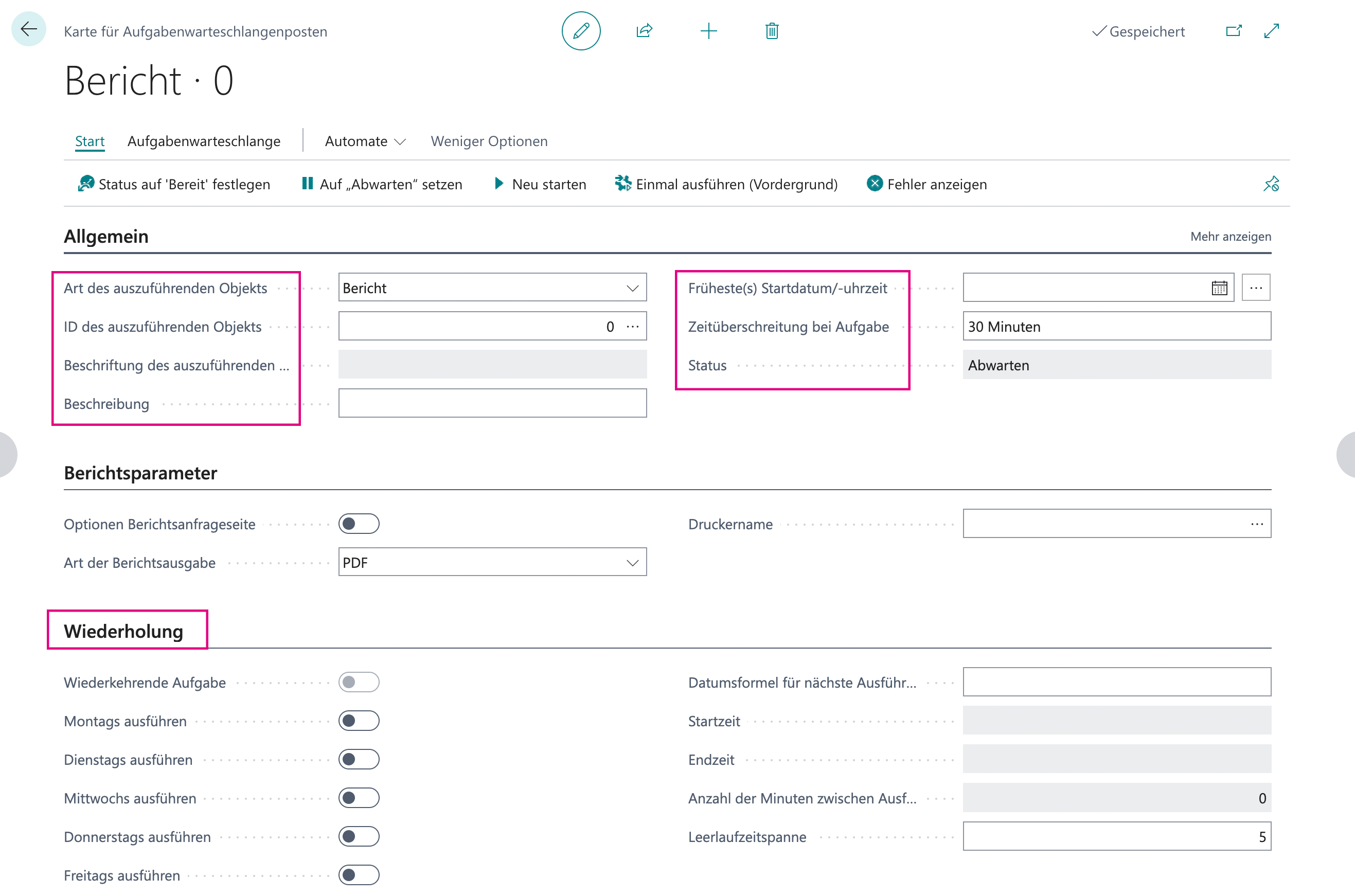
Fill in the fields:
{% endstep %}
{% endstepper %}
Object Type to Run
Codeunit
Object ID to Run
ID of the Shopware codeunit
Description
for example "Shopware Order Import"
Earliest Start Date/Time
Date/time
Job Timeout
Interval
Recurrence
Days of the week on which the entry runs.
Scheduling examples
Task
Recommended interval
Order download
15-30 minutes
Inventory upload
30-60 minutes
Price upload
Once daily
Item upload
Once daily
## 3. Activating a Job Queue Entry
### Changing the status
{% columns %}
{% column %}
{% stepper %}
{% step %}
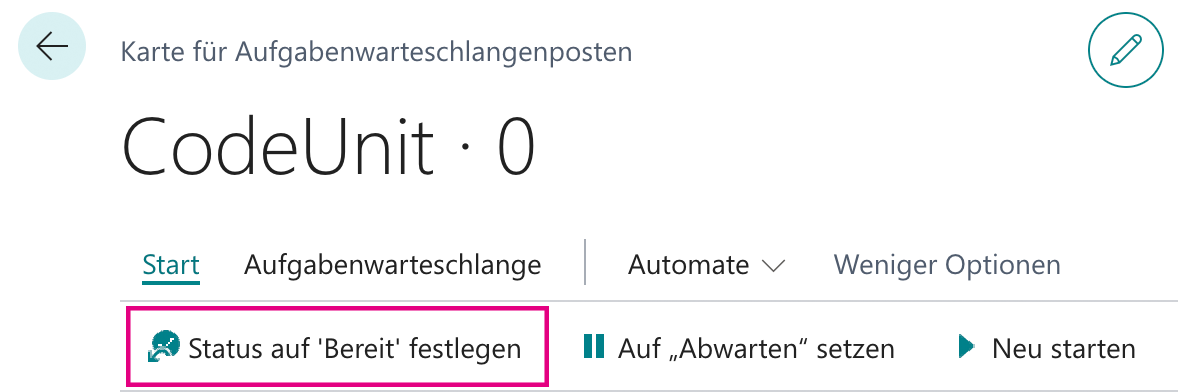
Select the entry.
{% endstep %}
{% step %}
Click "Set Status to Ready".
{% endstep %}
{% step %}
The entry runs at the next interval.
{% endstep %}
{% endstepper %}
{% endcolumn %}
{% column %}
{% endcolumn %}
{% endcolumns %}
Status overview
Status
Description
In Queue
Waiting for the next run
Ready
Runs at the next interval
In Process
Currently running
Error
Error during the last run
On Hold
Stopped manually
## 4. Logging
### 4.1 Execution log
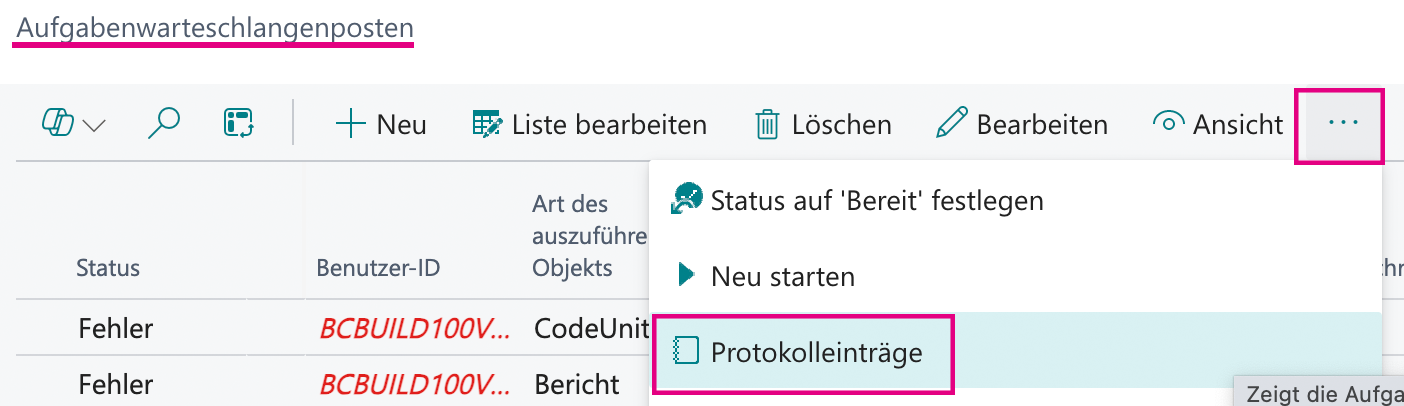
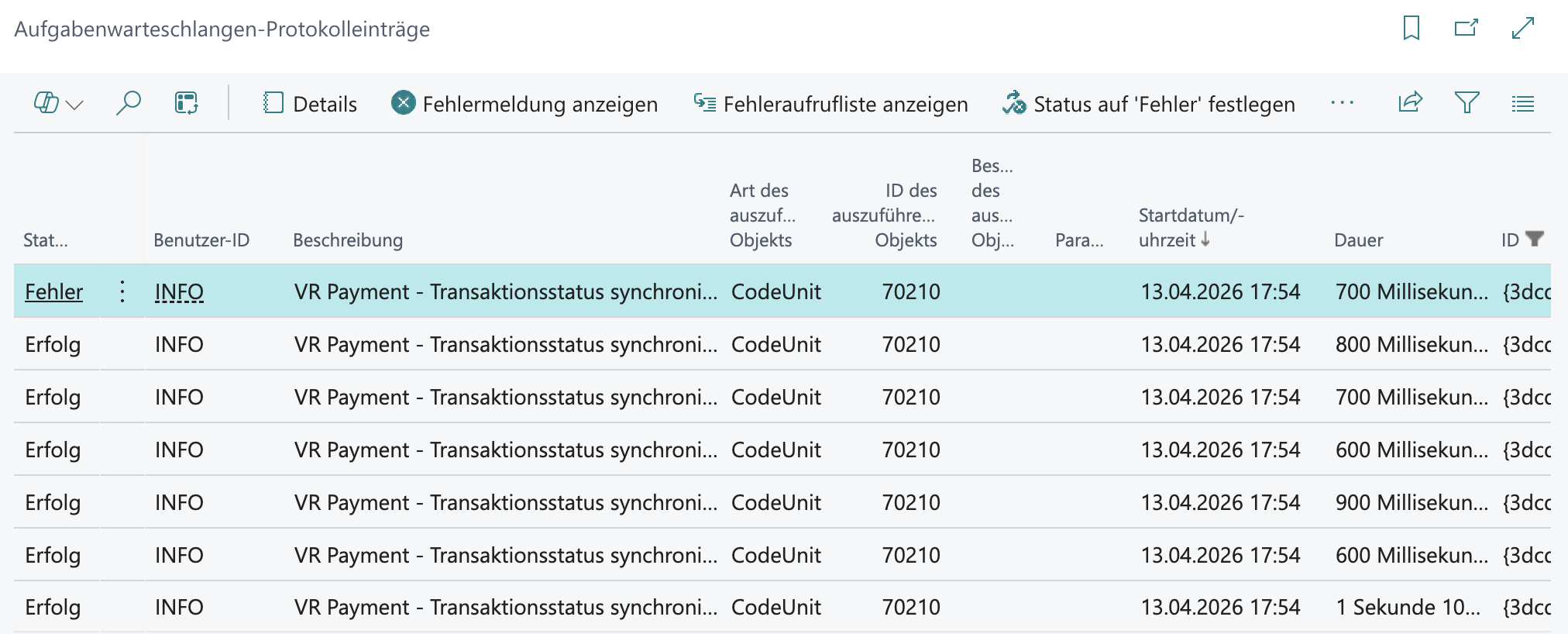
1. Open the **Job Queue Entry**
2. Click the three dots *"..."* :right: *"Log Entries"*
3. You see all runs with their status and duration.
### 4.2 Error analysis
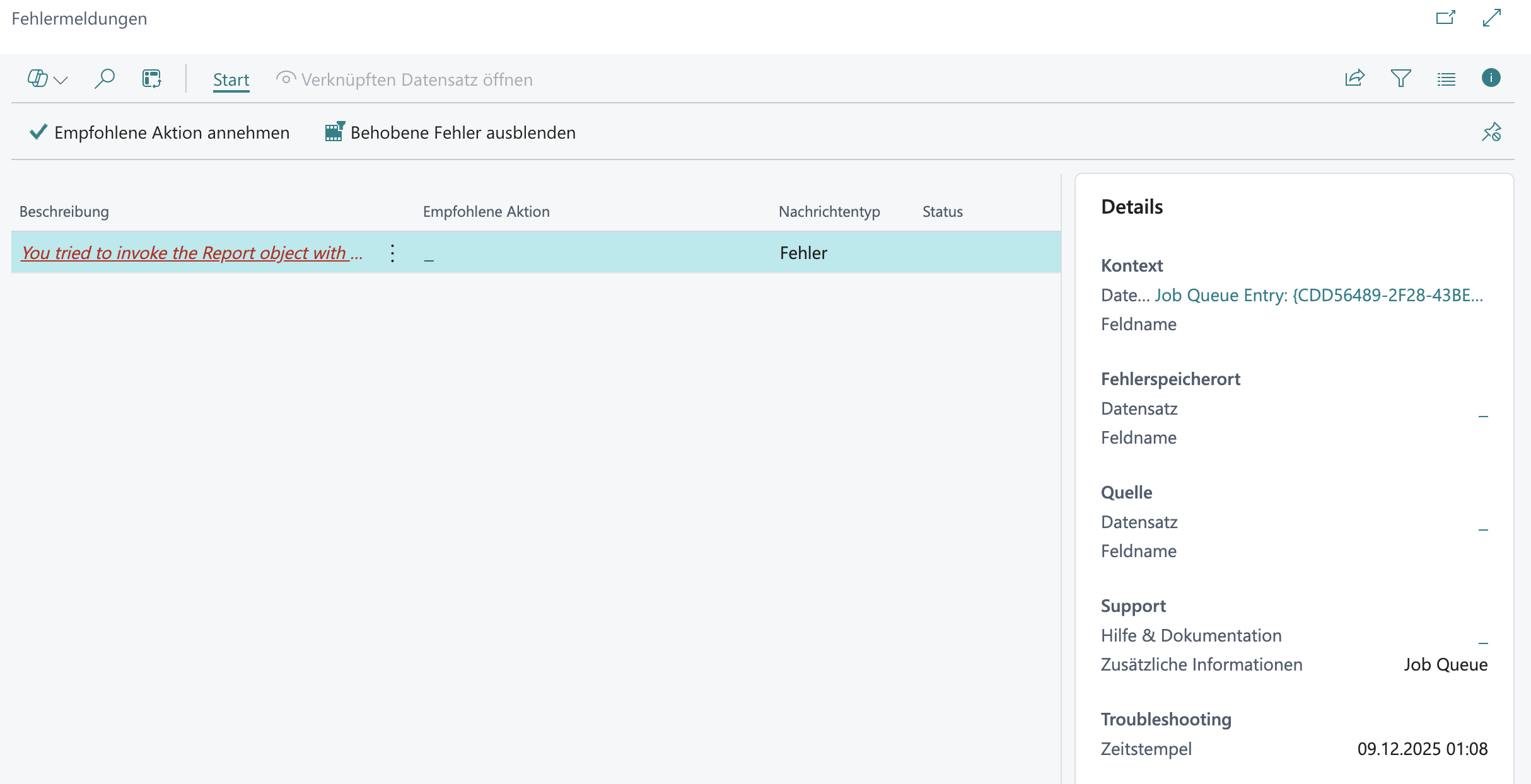
Proceed as described under [*"4.1 Execution log"*](#id-4.1-execution-log) and then click *"Show Error Message"* in the menu, or open the *Job Queue Entries* page directly and click the three dots *"..."* :right: *"Show Error".*
Analyze the cause, or accept the *"Recommended Action \[...]"*, for example.
## 5. Example Configuration
{% tabs %}
{% tab title="Order download" %}
```
Object Type to Run: Codeunit
Object ID to Run: [Order download codeunit ID]
Description: Shopware - Download Orders
No. of Minutes between Runs: 15
Run on Days of the Week: Mon-Sun
```
every 15 minutes
{% endtab %}
{% tab title="Inventory upload" %}
Object Type to Run: Codeunit
Object ID to Run: [Inventory upload codeunit ID]
Description: Shopware - Synchronize Inventory
No. of Minutes between Runs: 60
Run on Days of the Week: Mon-Sun
hourly
{% endtab %}
{% tab title="Price upload" %}
```
Object Type to Run: Codeunit
Object ID to Run: [Price upload codeunit ID]
Description: Shopware - Synchronize Prices
Earliest Start Time: 06:00:00
No. of Minutes between Runs: 1440 (= 24 hours)
Run on Days of the Week: Mon-Sun
```
daily at 6:00 AM
{% endtab %}
{% endtabs %}
Tips for day-to-day use
#### Scheduling
* Distribute tasks throughout the day.
* Avoid overlaps.
* Schedule resource-intensive tasks at night.
#### Monitoring
* Check the logs regularly.
* Set up notifications for errors.
* Respond to problems quickly.
#### Performance
* Limit the number of concurrent tasks.
* Optimize data volumes.
* Use filters for incremental updates.
---
# Agent Instructions
This documentation is published with GitBook. GitBook is the documentation platform designed so that both humans and AI agents can read, navigate, and reason over technical content effectively. Learn more at gitbook.com.
## Querying This Documentation
If you need additional information that is not directly available in this page, you can query the documentation by asking a question.
Perform an HTTP GET request on the following URL with the `ask` and `goal` query parameters:
```
GET https://docs.solutioo.de/shopware/shopware6_en_us/automation-and-schedules/job-queue-entries.md?ask=&goal=
```
`ask` is the immediate question: it should be specific, self-contained, and written in natural language.
`goal` is what the user is ultimately trying to achieve, the reason they need the answer. Sharing it helps GitBook give you a better, more relevant answer. A goal is most helpful when it describes the outcome the user wants rather than restating the question. For example, with `ask=how do I create an API token`, a goal like `automate deployments from our CI pipeline` lets GitBook tailor the answer to that use case.
The response will contain a direct answer to the question and relevant excerpts and sources from the documentation.
Use this mechanism when the answer is not explicitly present in the current page, you need clarification or additional context, or you want to retrieve related documentation sections.