> For the complete documentation index, see [llms.txt](https://docs.solutioo.de/llms.txt). Markdown versions of documentation pages are available by appending `.md` to page URLs; this page is available as [Markdown](https://docs.solutioo.de/shopware/shopware6_en_us/configuration/basic-settings/order-configuration.md).
# Order Configuration
The order settings determine how orders from Shopware are created in Business Central.
## Order Settings
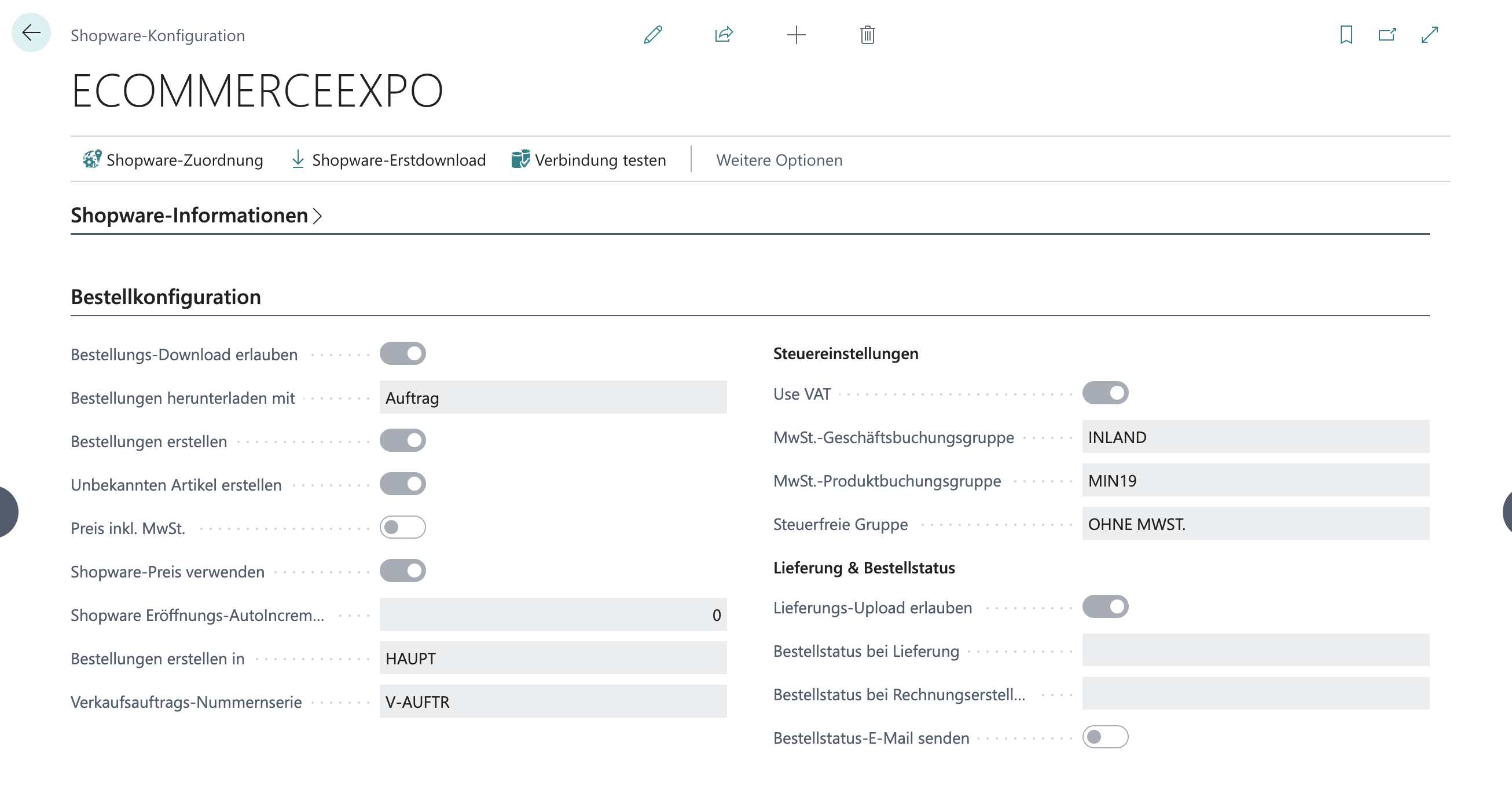
Navigate to *"Shopware"* :right: *"Configuration"* and switch to edit mode by clicking the "pencil icon" at the top of the newly opened window. Editing is now enabled.
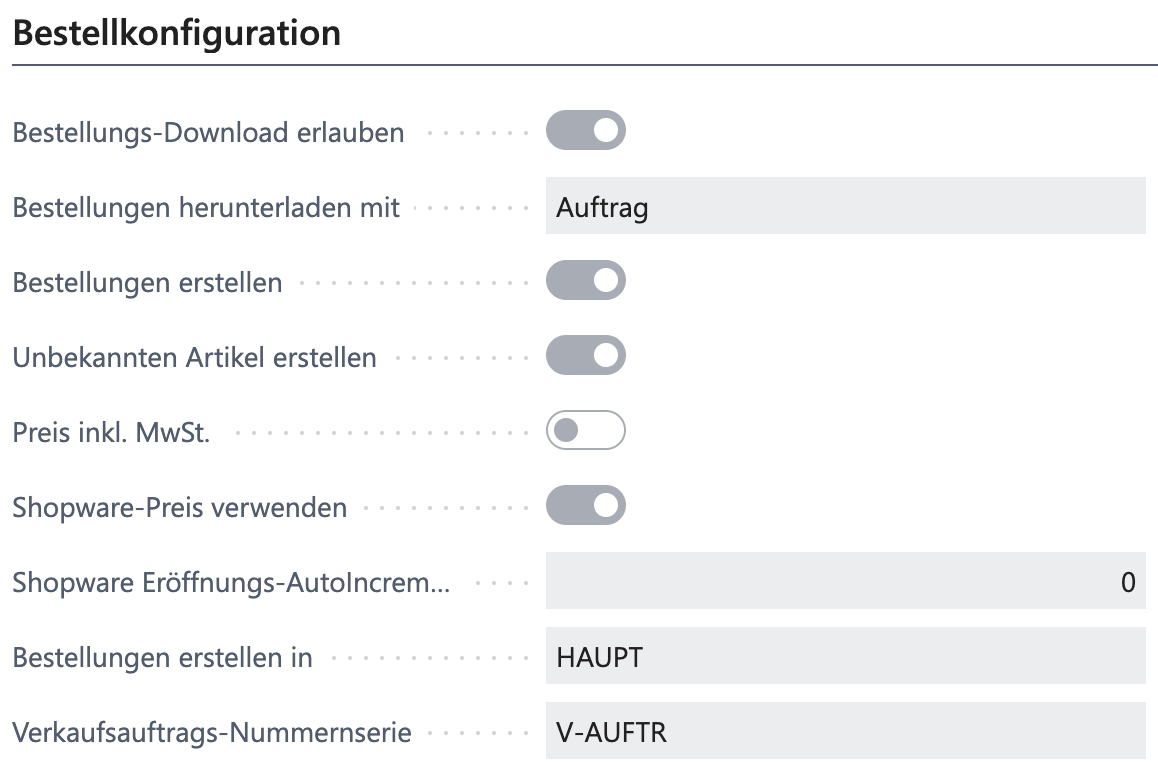
* **Allow Order Download**\
**YES** :right: A sales order containing all data from the order is created in Business Central for every new Shopware order.
* **Download Orders As**\
The available options are: *Quote/Order/Invoice*\
This setting influences how an order from Shopware arrives in Business Central.\
If, for example, the only payment method offered is direct payment for digital goods, it makes sense to create sales invoices directly. The choice therefore depends on the individual requirements of your company.
* **Create Orders**
*YES* :right: Allows orders of the "Download" type.
* **Create Unknown Item**
*YES* :right: Items that are available in Shopware but not in Business Central are created automatically when an order is downloaded.
* **Price Incl. VAT**\
**YES** :right: When this is enabled, the order price is calculated including VAT.
* **Use Shopware Price**
*YES* :right: Disable this option if you want to use the BC customer price when downloading orders. If it is not enabled, the system ignores the Shopware order price and applies the standard BC prices instead.
* **Shopware Opening AutoIncrement**\
In this field you can define the first order number of the order to be downloaded from Shopware. If, for example, test orders have already been placed in the system, you can use this to start the initial download with the first "real" order, so that test orders are not downloaded to Business Central.
* **Create Orders In**\
Defines the location in which the orders are created. This allows you to specify that the online shop may only source goods from one or more locations.
* **Sales Order No. Series**\
The number series to be used for the orders coming from Shopware. This field only needs to be set once and does not require updating after the initial configuration.\
As a rule: "*V-AUFTR"*
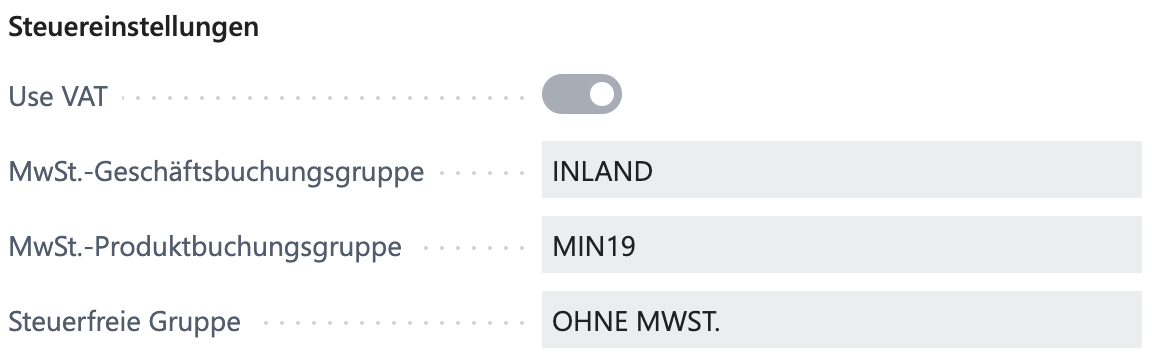
#### **Tax Settings**
* **Use VAT**\
**YES** :right: Set to YES if you want to work with taxes.
* **VAT Business Posting Group**\
Selection of the default business posting group for incoming orders, which is set automatically on every order. For example: *"INLAND"*
* **VAT Product Posting Group**\
Select the product posting group that is used for Shopware orders, for example *"VAT19"*.
* **Tax-Free Group**\
Specify the tax group for tax-free items.
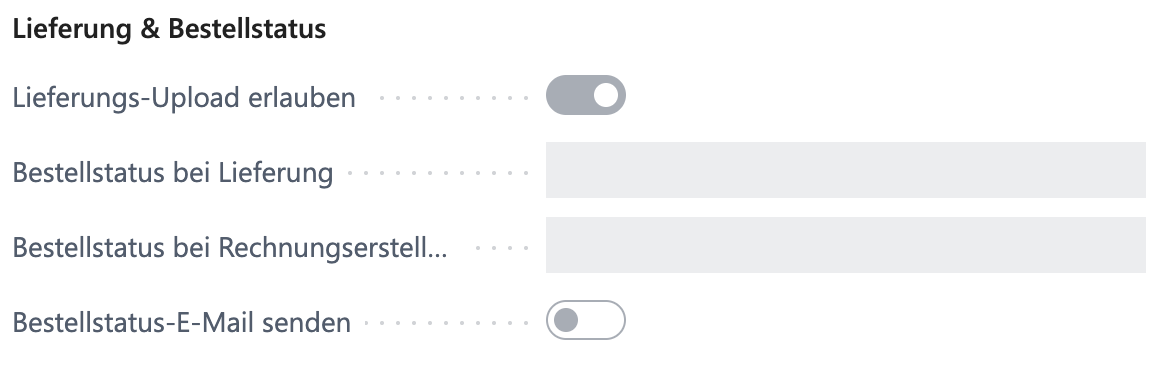
#### **Shipment & Order Status**
* **Allow Shipment Upload**\
**YES** :right: Allows a shipment to be uploaded from Business Central to Shopware, for example for order status updates.
* **Order Status on Shipment**
Shows the status of the shipment.
* **Order Status on Invoice Creation**
The order status that is set in Shopware when an invoice is created.
* **Send Order Status Email**
*YES* :right: Sends an email notification to the customer when the order status changes in Shopware.
{% hint style="info" %}
### Automated Import
1. Create a *"*[*Job Queue Entry*](/shopware/shopware6_en_us/automation-and-schedules/job-queue-entries.md)*"*.
2. Select the "*Codeunit*" for the order download.
3. Define the interval (for example every 15 minutes).
{% endhint %}
---
# Agent Instructions
This documentation is published with GitBook. GitBook is the documentation platform designed so that both humans and AI agents can read, navigate, and reason over technical content effectively. Learn more at gitbook.com.
## Querying This Documentation
If you need additional information that is not directly available in this page, you can query the documentation dynamically by asking a question.
Perform an HTTP GET request on the current page URL with the `ask` query parameter, and the optional `goal` query parameter:
```
GET https://docs.solutioo.de/shopware/shopware6_en_us/configuration/basic-settings/order-configuration.md?ask=&goal=
```
`ask` is the immediate question: it should be specific, self-contained, and written in natural language.
`goal` is optional and describes the broader end goal you are ultimately trying to accomplish on behalf of the user. GitBook uses it to tailor the answer towards what is most useful for that goal.
The response will contain a direct answer to the question and relevant excerpts and sources from the documentation.
Use this mechanism when the answer is not explicitly present in the current page, you need clarification or additional context, or you want to retrieve related documentation sections.