> For the complete documentation index, see [llms.txt](https://docs.solutioo.de/llms.txt). Markdown versions of documentation pages are available by appending `.md` to page URLs; this page is available as [Markdown](https://docs.solutioo.de/shopware/shopware6_en_us/pdf-documents/bulk-upload-of-documents.md).
# Bulk Upload of Documents
Learn how to upload several PDF documents to Shopware at the same time.
Several methods are available for uploading multiple documents.
## 1. Upload from the document list
### Uploading several invoices / credit memos / shipments
{% stepper %}
{% step %}
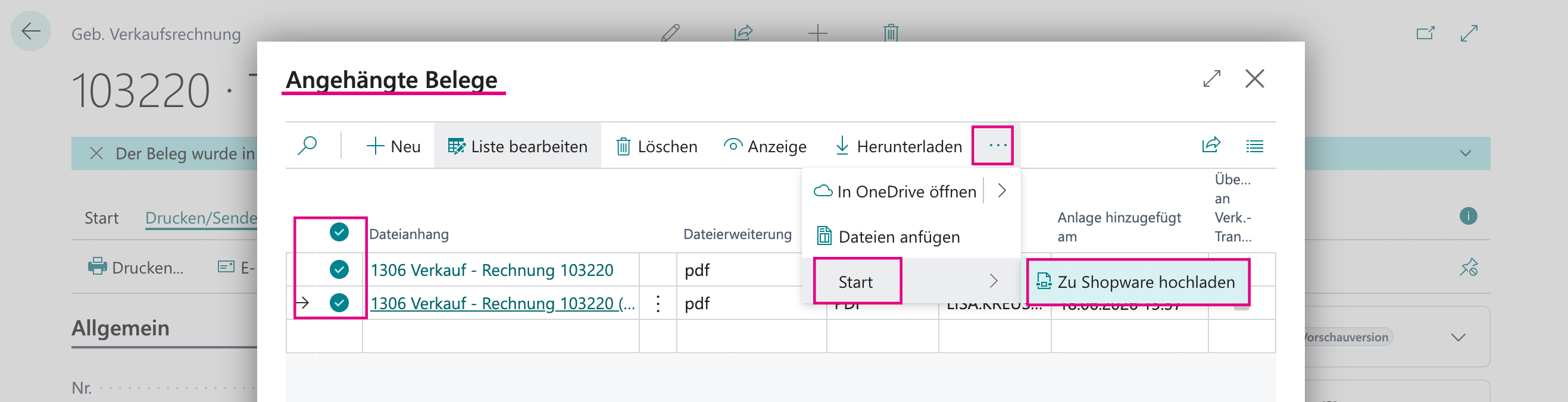
Open...\
...*"Posted Sales Invoices" or*\
\&#xNAN;*..."Posted Sales Credit Memos" or*\
\&#xNAN;*..."Posted Sales Shipments".*
{% endstep %}
{% step %}
Select the...\
...required invoices.\
...required credit memos.\
...required shipments.
{% hint style="info" %}
***Ctrl /*****Command*****+click*** for multiple selection in the open *"Attached Documents*" window.
{% endhint %}
{% endstep %}
{% step %}
Click the three dots *"..."* :right: "Home" :right: *"Upload to Shopware".* You may also need to select the document type.
{% endstep %}
{% step %}
A summary shows the upload status.
{% endstep %}
{% endstepper %}
## 2. Upload via the Customer Card
From the Customer Card, you can upload all documents of a specific customer:
{% stepper %}
{% step %}
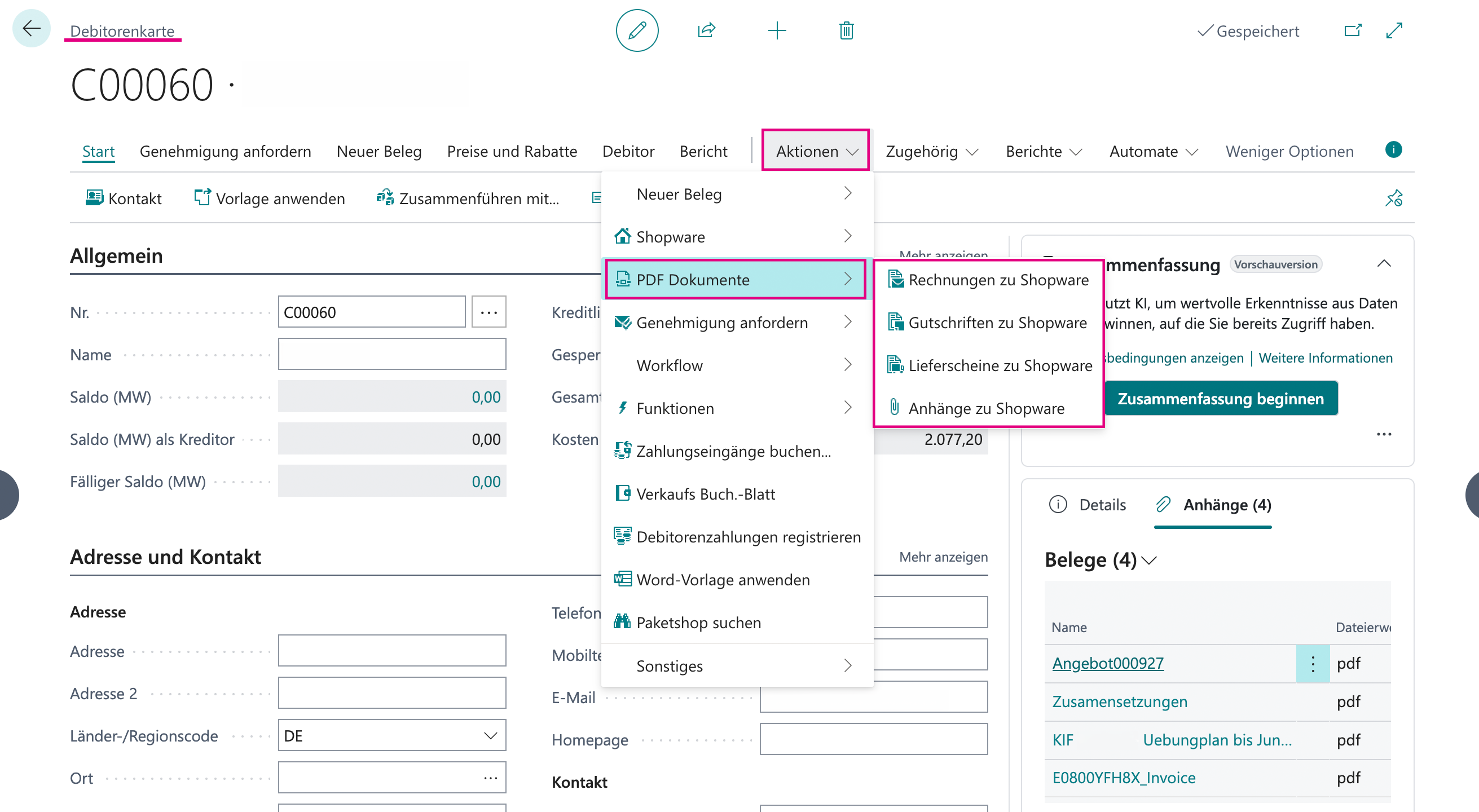
Open the "*Customer Card"* of the required customer.
{% endstep %}
{% step %}
Navigate to *"Actions"* :right: *"PDF Documents"*
{% endstep %}
{% step %}
Select the required option:
* *"Invoices to Shopware"*: All invoices of the customer
* *"Credit Memos to Shopware"*: All credit memos of the customer
* *"Shipments to Shopware"*: All shipments of the customer
* *"Attachments to Shopware"*: Document attachments of the customer
{% endstep %}
{% step %}
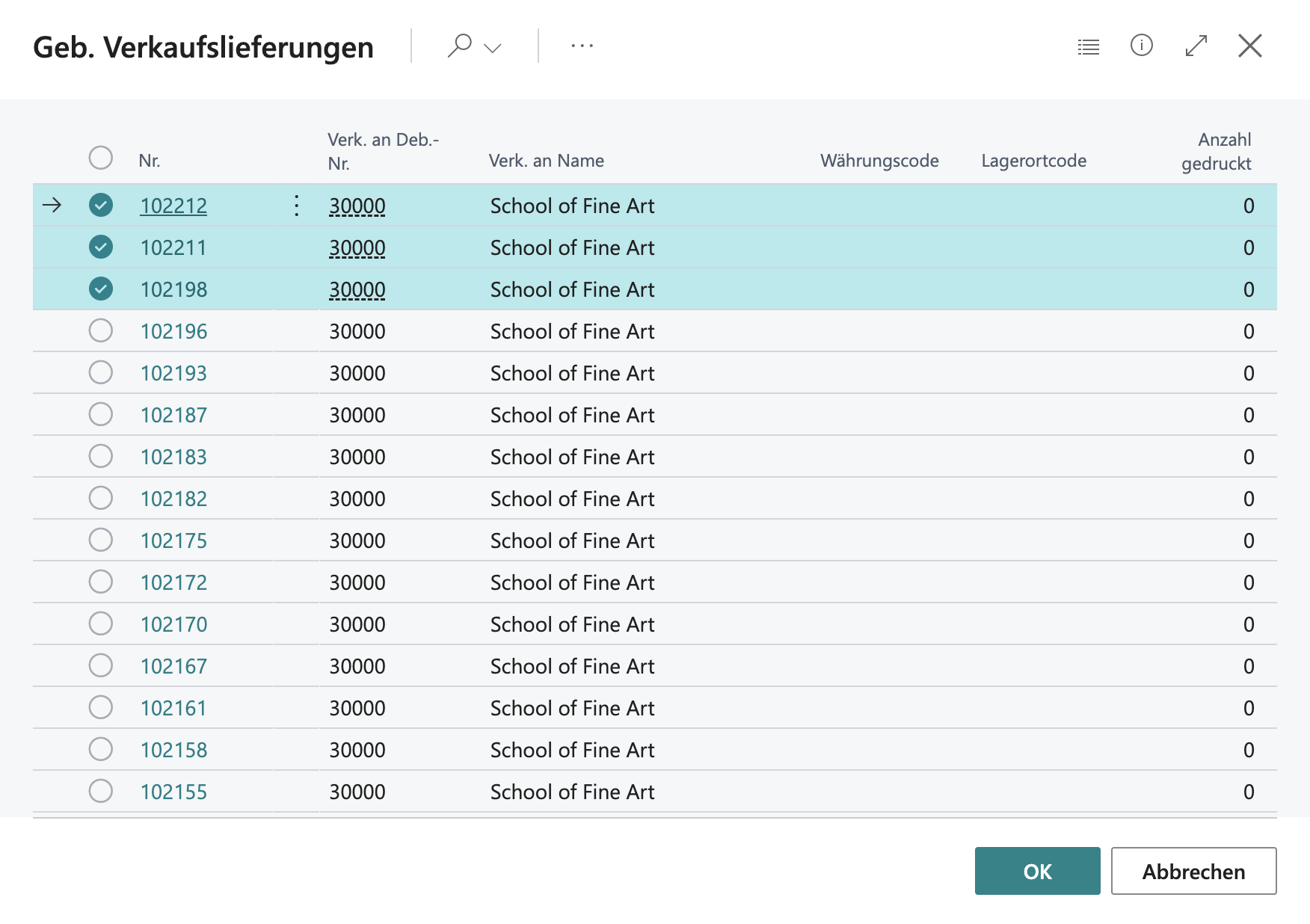
In the newly opened window, select the required document or documents and confirm with *"OK"*.
{% endstep %}
{% endstepper %}
An example of the upload.
## 3. Batch upload report
A dedicated report is available for processing large volumes of data or for recurring uploads.
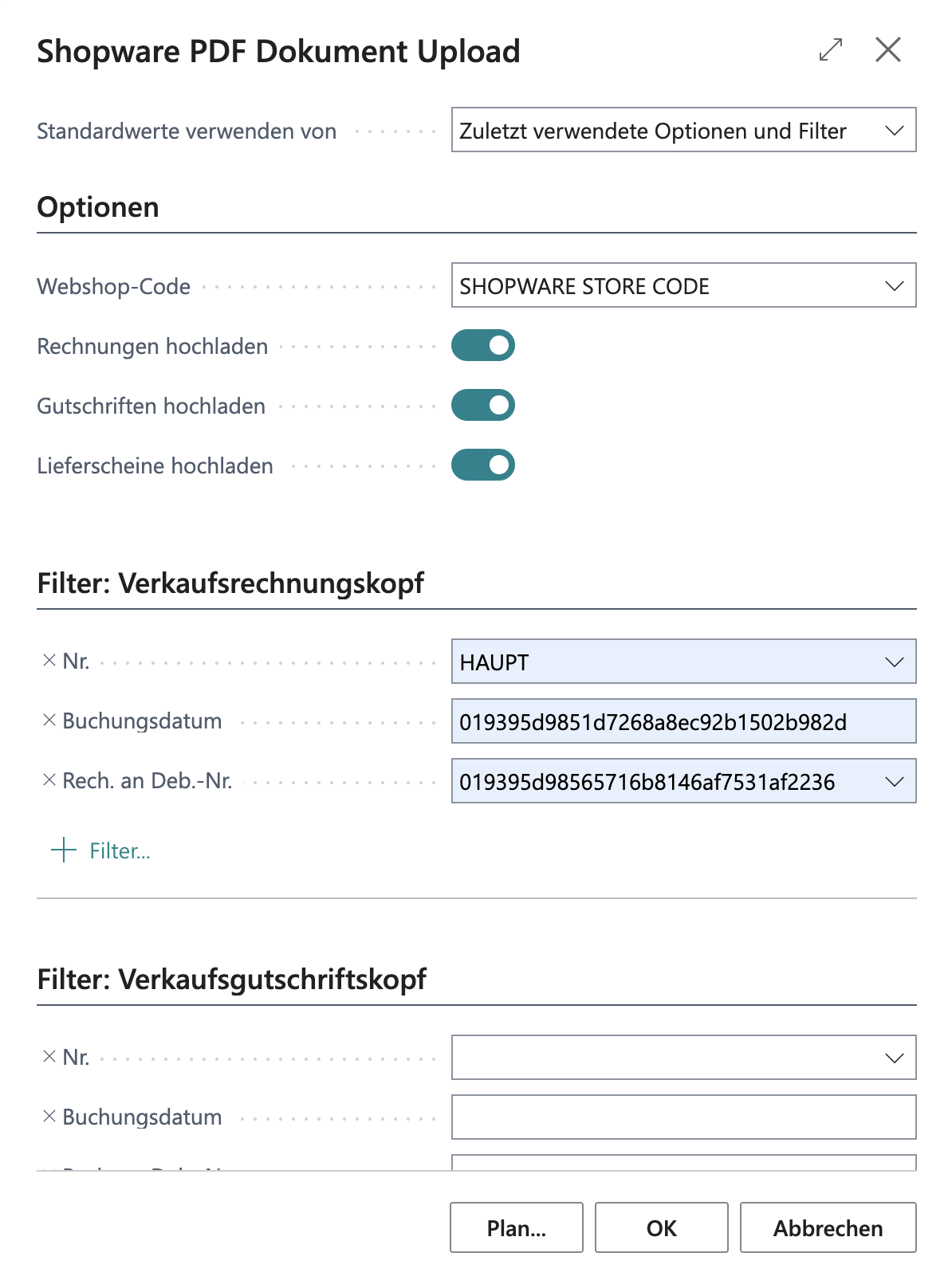
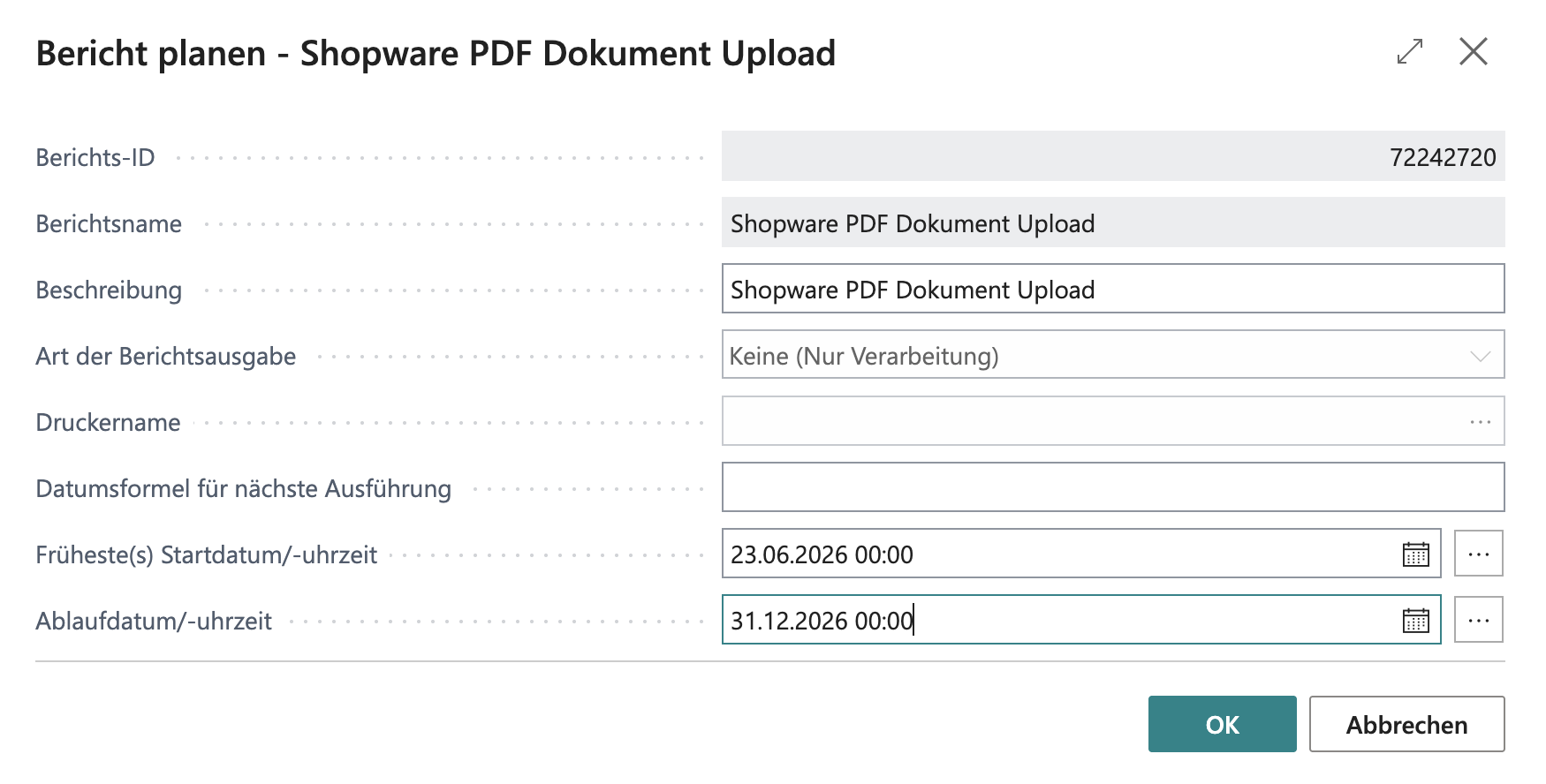
Enter *"Shopware PDF Document Upload"* in the search and select the corresponding entry. In the window that opens, you can configure various filters. For example, you can adjust the following settings:
* Document type: invoices, credit memos, or shipments
* *From Date / To Date*: Limit the period (screenshot: *"Schedule a Report -..."*)
* *Customer filter*: Select specific customers
Click *"OK"* to start the upload.
{% hint style="info" %}
The batch upload report is particularly suitable for the initial transfer of historical documents or for recurring automated uploads.
{% endhint %}
You can reach this view via "Schedule…" in the previous screenshot.
## 4. Upload summary
{% columns %}
{% column %}
After every bulk upload, a summary is displayed:
```
Upload completed:
- Successful: 15
- Failed: 2
```
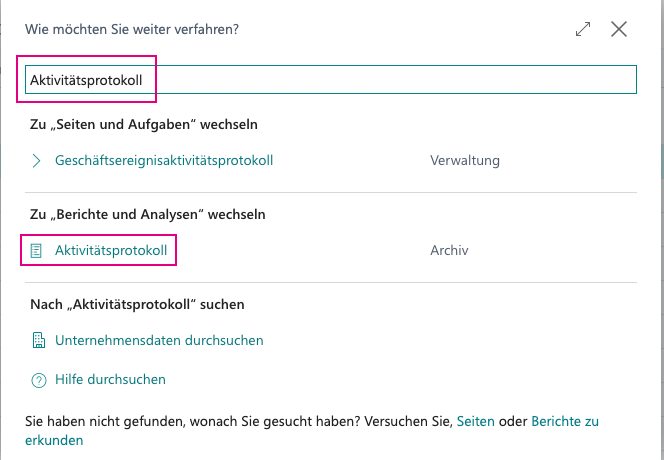
If errors occur, you can check the [Activity Log](/shopware/shopware6_en_us/monitoring-and-logs/activity-log.md) to determine the exact causes.
{% endcolumn %}
{% column %}
{% endcolumn %}
{% endcolumns %}
## 5. Automation
The PDF upload can also be automated using the Job Queue:
{% stepper %}
{% step %}
Create a new [*Job Queue Entry.*](/shopware/shopware6_en_us/automation-and-schedules/job-queue-entries.md)
{% endstep %}
{% step %}
Select the "*PDF Document Upload"* report.
{% endstep %}
{% step %}
Configure the schedule (for example, daily at 8:00 PM).
{% endstep %}
{% step %}
Activate the entry.
{% endstep %}
{% endstepper %}
{% hint style="warning" %}
No dialog windows are displayed during automated uploads. Make sure that all filters are configured correctly.
{% endhint %}
Tips for daily use
**Recommended approach**
1. **Test first:** Start by uploading individual documents to verify the configuration.
2. **Small batches:** Start with smaller volumes (10-50 documents).
3. **Check the mapping:** Make sure that the customer mapping works.
4. **Monitoring:** Monitor the Activity Log for errors.
**Performance tips**
* The upload runs sequentially; large volumes can take some time.
* Avoid uploads during peak times.
* Check the network connection before larger uploads.
---
# Agent Instructions
This documentation is published with GitBook. GitBook is the documentation platform designed so that both humans and AI agents can read, navigate, and reason over technical content effectively. Learn more at gitbook.com.
## Querying This Documentation
If you need additional information that is not directly available in this page, you can query the documentation by asking a question.
Perform an HTTP GET request on the following URL with the `ask` and `goal` query parameters:
```
GET https://docs.solutioo.de/shopware/shopware6_en_us/pdf-documents/bulk-upload-of-documents.md?ask=&goal=
```
`ask` is the immediate question: it should be specific, self-contained, and written in natural language.
`goal` is what the user is ultimately trying to achieve, the reason they need the answer. Sharing it helps GitBook give you a better, more relevant answer. A goal is most helpful when it describes the outcome the user wants rather than restating the question. For example, with `ask=how do I create an API token`, a goal like `automate deployments from our CI pipeline` lets GitBook tailor the answer to that use case.
The response will contain a direct answer to the question and relevant excerpts and sources from the documentation.
Use this mechanism when the answer is not explicitly present in the current page, you need clarification or additional context, or you want to retrieve related documentation sections.