> For the complete documentation index, see [llms.txt](https://docs.solutioo.de/llms.txt). Markdown versions of documentation pages are available by appending `.md` to page URLs; this page is available as [Markdown](https://docs.solutioo.de/shopware/shopware6_en_us/price-and-inventory-management/price-updates.md).

# Price Updates

Price synchronization ensures that your item prices are consistent in Business Central and Shopware.

## 1. Price Synchronization

Prices are synchronized from Business Central to Shopware. Business Central acts as the leading system for price management. Changes made in BC are transferred to Shopware automatically. Price changes made directly in Shopware are overwritten by the data from Business Central during the next synchronization.

<table><thead><tr><th width="143.939453125">Price Type</th><th width="267.3792724609375">Synchronization</th></tr></thead><tbody><tr><td><strong>Standard price</strong></td><td>Sales price from the Item Card</td></tr><tr><td><strong>Tiered prices</strong></td><td>Quantity-dependent prices</td></tr><tr><td><strong>Customer prices</strong></td><td>Individual customer prices</td></tr><tr><td><strong>Campaign prices</strong></td><td>Time-limited special prices</td></tr></tbody></table>

## 2. <mark style="background-color:yellow;">Manual Price Synchronization</mark>

### Single Item

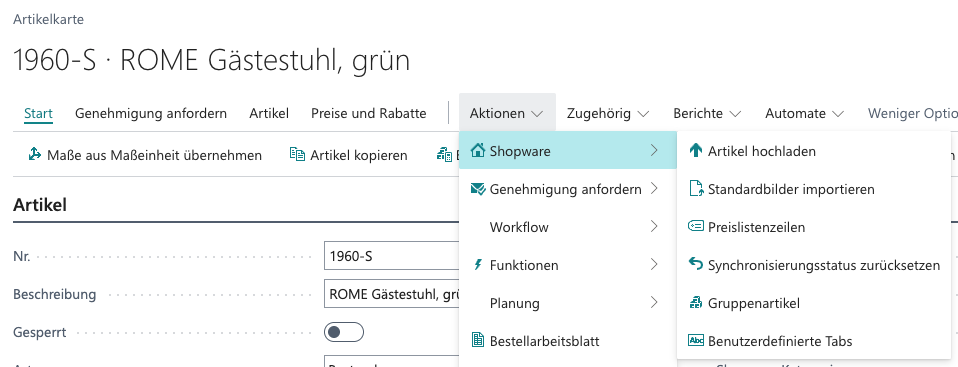
1. Open the **Item Card.**
2. Click **Actions** → **Price to Shopware**
3. The price is updated.

<div align="left" data-with-frame="true"><figure><img src="https://content.gitbook.com/content/Pma4R4cytVXRDRO1gkpH/blobs/XAG6UFgdyxDFO7AOrEf5/Bildschirmfoto%202026-06-30%20um%2009.26.33.png" alt="" width="563"><figcaption></figcaption></figure></div>

### Multiple Items

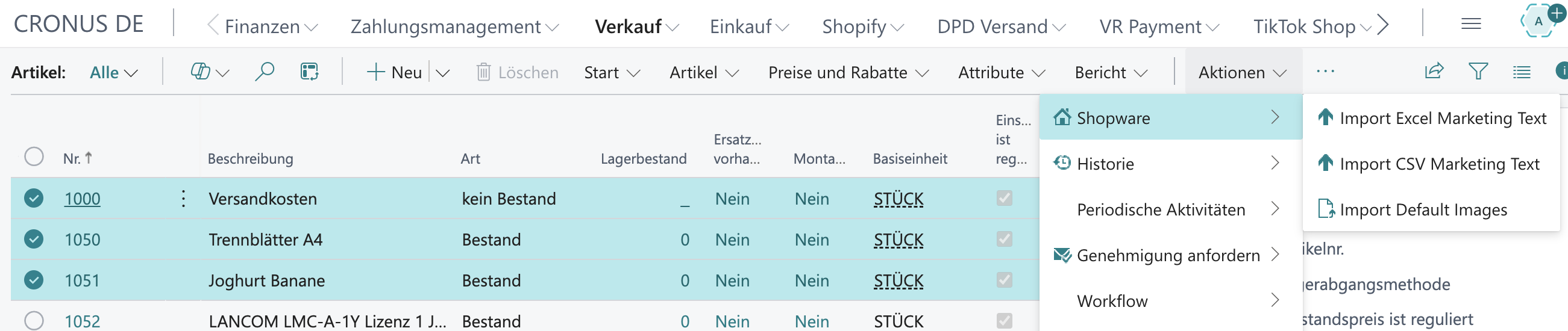
1. Open the **item list.**
2. Select the items you want.
3. Click **Prices to Shopware.**

<div align="left" data-with-frame="true"><figure><img src="https://content.gitbook.com/content/Pma4R4cytVXRDRO1gkpH/blobs/nRPntcRjHj4kyiTVs5Ak/Bildschirmfoto%202026-04-21%20um%2009.14.18.png" alt=""><figcaption></figcaption></figure></div>

## 3. Automatic Price Synchronization

### 3.1 Job Queue

Open the explanation of [Job Queue Entries](/shopware/shopware6_en_us/automation-and-schedules/job-queue-entries.md) to adjust the configuration of the automatic price synchronization there.

<table data-view="cards"><thead><tr><th data-type="number"></th><th></th></tr></thead><tbody><tr><td>1</td><td>Create a <strong>Job Queue Entry.</strong></td></tr><tr><td>2</td><td>Select the codeunit <strong>Price Upload.</strong></td></tr><tr><td>3</td><td>Define the interval (for example, daily).</td></tr></tbody></table>

### 3.2 Trigger-Based

Prices can also be updated automatically whenever changes occur:

<table data-view="cards"><thead><tr><th></th><th></th></tr></thead><tbody><tr><td><i class="fa-sack-dollar">:sack-dollar:</i></td><td>When the sales price changes.</td></tr><tr><td><i class="fa-list-ul">:list-ul:</i></td><td>When new price lines are created.</td></tr><tr><td><i class="fa-money-bills">:money-bills:</i></td><td>When tiered prices change.</td></tr></tbody></table>

## 4. Price Configuration

{% columns %}
{% column width="50%" %}

### Price Field

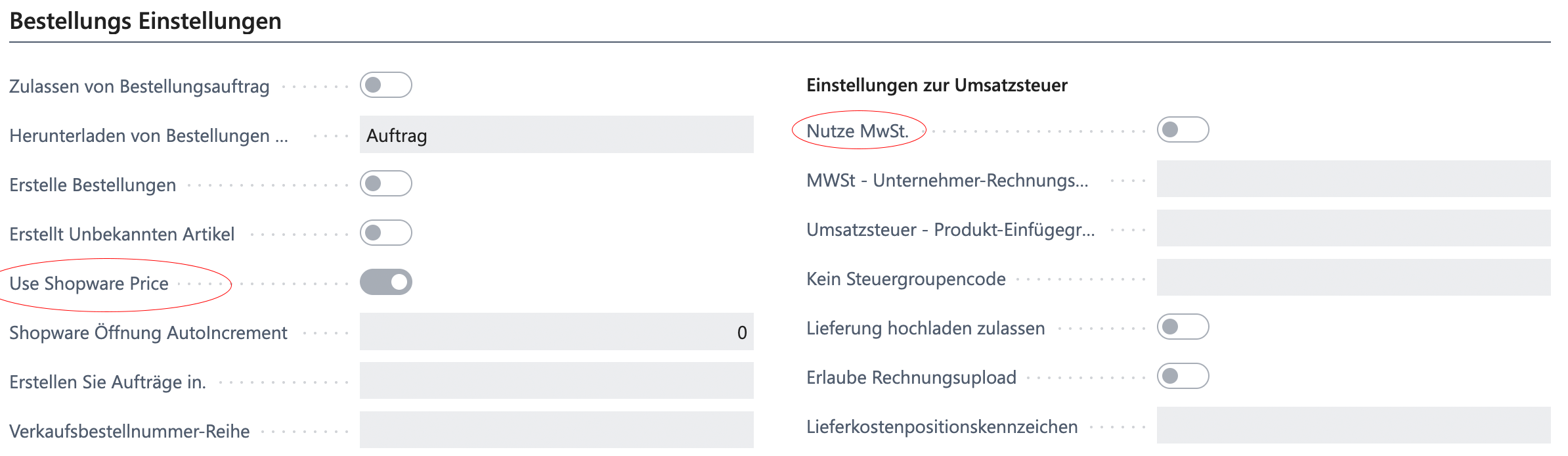
In *Settings / Configuration* you define which field is used for the Shopware price:

<table><thead><tr><th width="150.0235595703125">Option</th><th width="169.2327880859375">Description</th></tr></thead><tbody><tr><td>Sales price</td><td>Standard sales price</td></tr><tr><td>Unit cost</td><td>Purchase price</td></tr><tr><td>Price incl. VAT</td><td>Gross price</td></tr></tbody></table>
{% endcolumn %}

{% column width="50%" %}

### Net/Gross

Configure whether prices are transferred net or gross:

* **Net**:
  * For B2B shops
* **Gross**:
  * For B2C shops
    {% endcolumn %}
    {% endcolumns %}

<div align="left" data-with-frame="true"><figure><img src="https://content.gitbook.com/content/Pma4R4cytVXRDRO1gkpH/blobs/xTWloJuLvScFUiZPFAYM/Bildschirmfoto%202026-04-21%20um%2009.49.44.png" alt=""><figcaption></figcaption></figure></div>

## 5. VAT Mapping

{% columns %}
{% column width="50%" %}
Correct VAT mapping is essential:

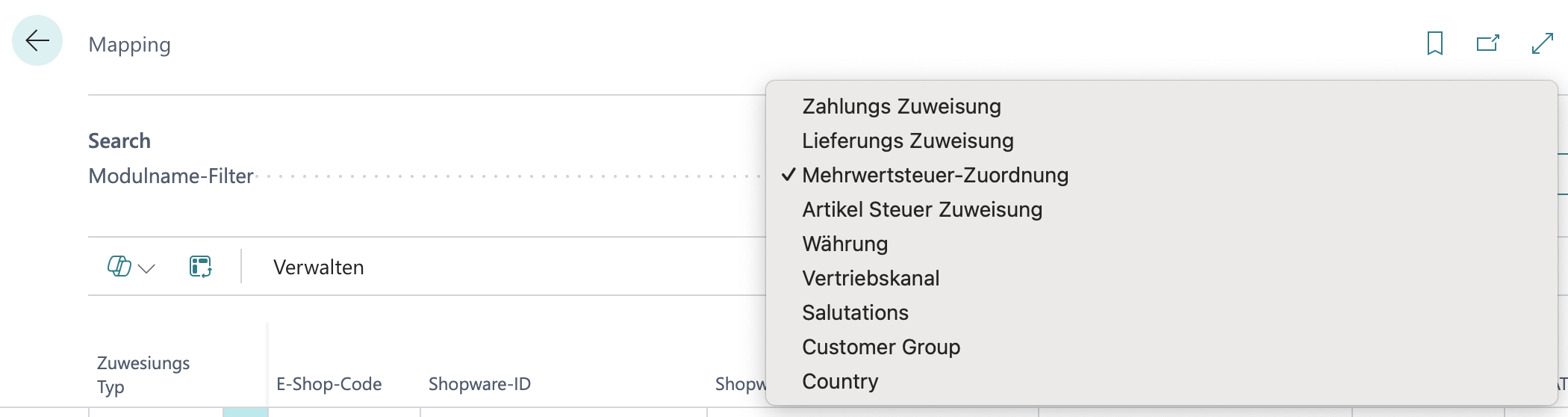
1. Open *"Shopware"* <i class="fa-right">:right:</i> *"Mapping"* <i class="fa-right">:right:</i> *"VAT Mapping"*
2. Map the Business Central VAT groups to the Shopware tax rates.
   {% endcolumn %}

{% column width="50%" %}

<table><thead><tr><th width="133.1644287109375">BC VAT Group</th><th width="125.65966796875">Shopware Tax Rate</th></tr></thead><tbody><tr><td>FULL</td><td>19%</td></tr><tr><td>REDUCED</td><td>7%</td></tr><tr><td>EXEMPT</td><td>0%</td></tr></tbody></table>
{% endcolumn %}
{% endcolumns %}

<div align="left" data-with-frame="true"><figure><img src="https://content.gitbook.com/content/Pma4R4cytVXRDRO1gkpH/blobs/YwNJWzDrcfb3y2tl8OF7/Bildschirmfoto%202026-04-21%20um%2009.51.59.png" alt=""><figcaption></figcaption></figure></div>

## 6. Currencies

If you use multiple currencies:

1. Configure the **currency mapping.**
2. Prices are transferred in the respective currency.
3. The exchange rates from BC are used.

<div align="left" data-with-frame="true"><figure><img src="https://content.gitbook.com/content/Pma4R4cytVXRDRO1gkpH/blobs/ObJBUDV351xE12F147Gj/Bildschirmfoto%202026-04-21%20um%2009.56.41.png" alt=""><figcaption></figcaption></figure></div>

<details>

<summary><strong>Tips for Day-to-Day Use</strong></summary>

**Price consistency**

* Maintain prices centrally in BC.
* Avoid manual price changes in Shopware.
* Document your pricing strategies.

**Timing**

* Synchronize prices outside peak hours.
* Schedule price changes for low-traffic periods.
* Communicate major price changes.

**Control**

* Spot-check the prices in both systems.
* Monitor the Activity Log.
* Respond quickly to errors.

</details>


---

# Agent Instructions
This documentation is published with GitBook. GitBook is the documentation platform designed so that both humans and AI agents can read, navigate, and reason over technical content effectively. Learn more at gitbook.com.

## Querying This Documentation
If you need additional information that is not directly available in this page, you can query the documentation dynamically by asking a question.

Perform an HTTP GET request on the current page URL with the `ask` query parameter, and the optional `goal` query parameter:

```
GET https://docs.solutioo.de/shopware/shopware6_en_us/price-and-inventory-management/price-updates.md?ask=<question>&goal=<endgoal>
```

`ask` is the immediate question: it should be specific, self-contained, and written in natural language.
`goal` is optional and describes the broader end goal you are ultimately trying to accomplish on behalf of the user. GitBook uses it to tailor the answer towards what is most useful for that goal.

The response will contain a direct answer to the question and relevant excerpts and sources from the documentation.

Use this mechanism when the answer is not explicitly present in the current page, you need clarification or additional context, or you want to retrieve related documentation sections.