> For the complete documentation index, see [llms.txt](https://docs.solutioo.de/llms.txt). Markdown versions of documentation pages are available by appending `.md` to page URLs; this page is available as [Markdown](https://docs.solutioo.de/shopware/shopware6_en_us/price-and-inventory-management/price-updates/special-prices.md).

# Special Prices

Special prices enable **time-limited** campaigns and individual customer prices.

## 1. Special Prices in Business Central

### 1.1 Time-Limited Prices

{% stepper %}
{% step %}
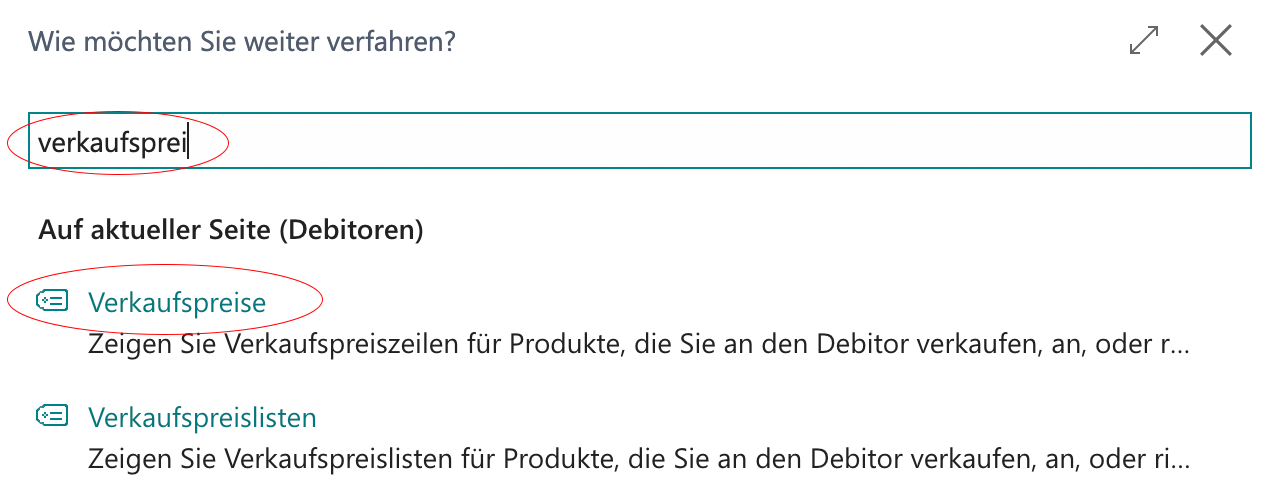
Open *"Sales Prices"* or *"Sales Price Lists"* using the BC search.
{% endstep %}

{% step %}
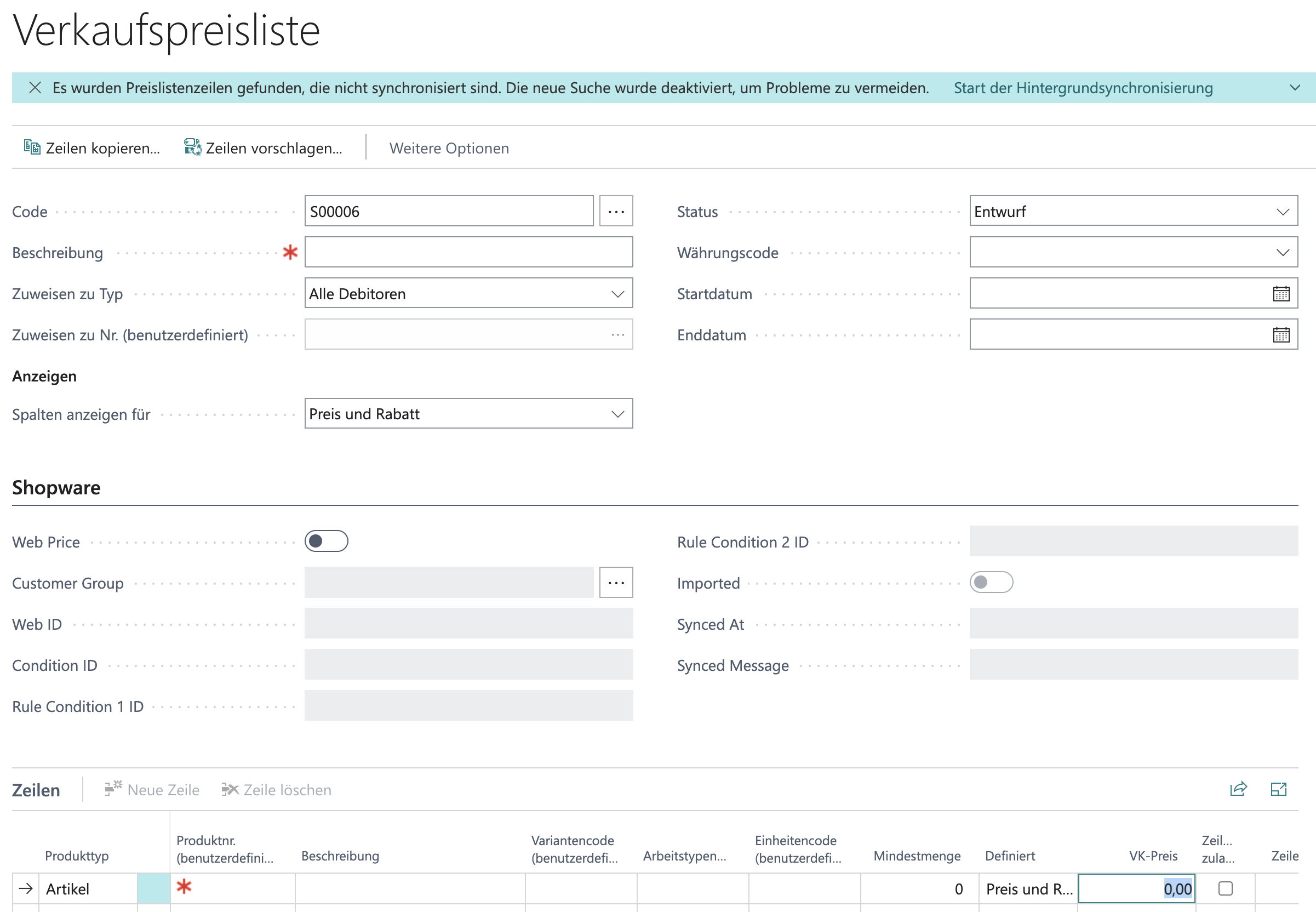
Create a price with a validity date.
{% endstep %}
{% endstepper %}

<div align="left"><figure><img src="https://content.gitbook.com/content/Pma4R4cytVXRDRO1gkpH/blobs/DPqZ12cJKhDBgCQ205KD/Bildschirmfoto%202026-04-21%20um%2010.54.17.png" alt=""><figcaption><p>Search field in BC</p></figcaption></figure> <figure><img src="https://content.gitbook.com/content/Pma4R4cytVXRDRO1gkpH/blobs/kGO7X5aDrH4KOWH04ZBv/Bildschirmfoto%202026-04-21%20um%2010.59.56.png" alt=""><figcaption><p>Window for entering time-limited prices/campaigns</p></figcaption></figure></div>

### 1.2 Customer-Specific Prices

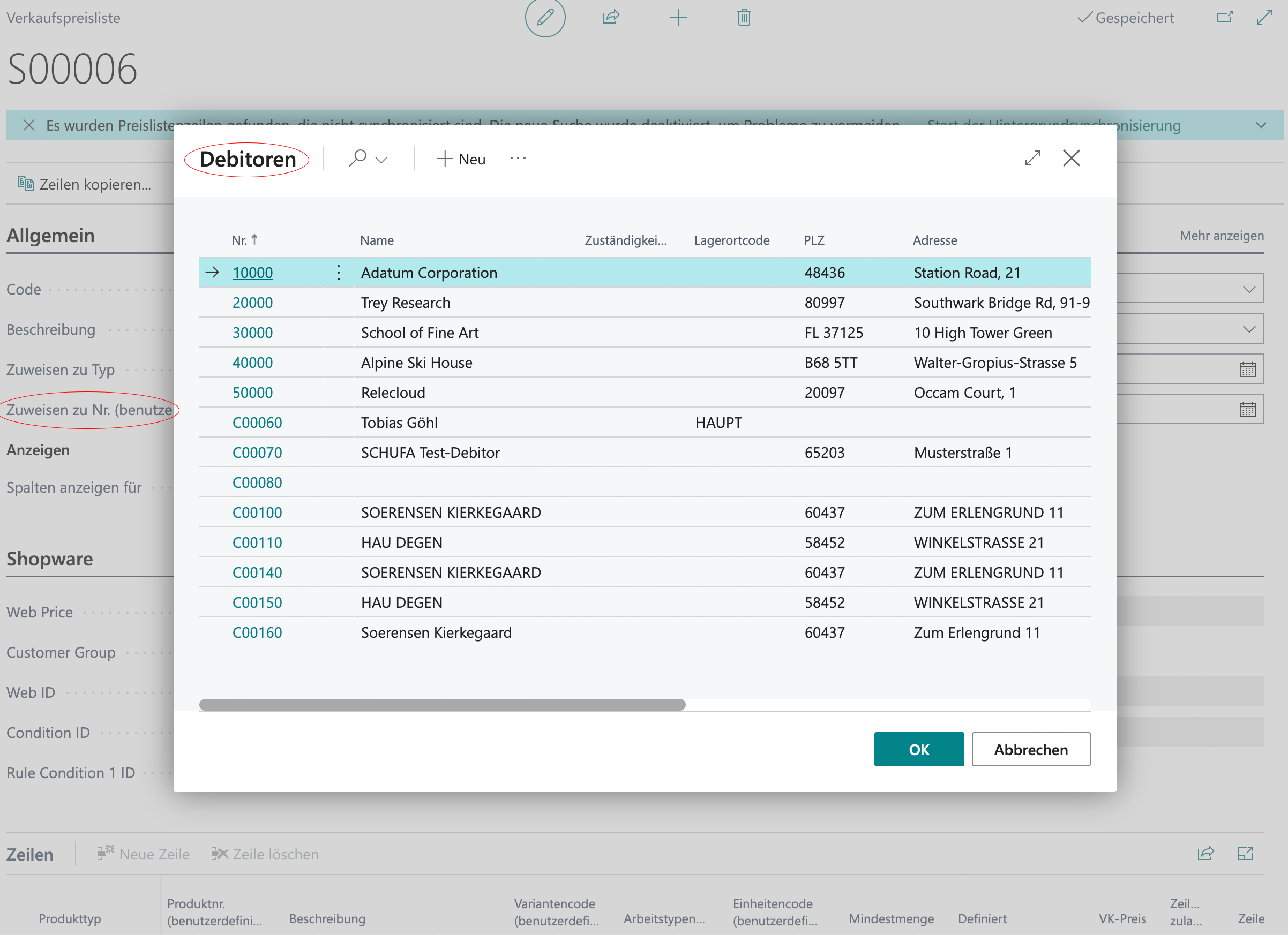
For individual customer prices, fill in the following fields:

* Description: *your meaningful description*
* Assign-to Type: "*Customer"*
* Assign-to No. (custom): *select the customer here.*
* Starting date and ending date: *define the period, if required.*
* Under "*Shopware"* you will find the "*Lines"*, where you select the special prices and items.

<div align="left" data-with-frame="true"><figure><img src="https://content.gitbook.com/content/Pma4R4cytVXRDRO1gkpH/blobs/hENSDmfNzEKnjvTD2Pm7/Bildschirmfoto%202026-04-21%20um%2011.03.32.png" alt="" width="563"><figcaption></figcaption></figure></div>

## 2. Synchronization to Shopware

<table data-card-size="large" data-view="cards"><thead><tr><th></th><th></th></tr></thead><tbody><tr><td><h3>Campaign Prices</h3></td><td><p>Campaign prices with a validity date are transferred to Shopware:</p><ul><li>The starting date and ending date are adopted.</li><li>Shopware displays the reduced price.</li><li>Once the period expires, the regular price applies again.</li></ul></td></tr><tr><td><h3>Display in Shopware</h3></td><td><ul><li>Original price shown with a strikethrough</li><li>Current campaign price highlighted</li><li>Optionally a countdown until the campaign ends</li></ul></td></tr></tbody></table>

## 3. Customer Group Prices

### 3.1 Price Groups in BC

{% stepper %}
{% step %}
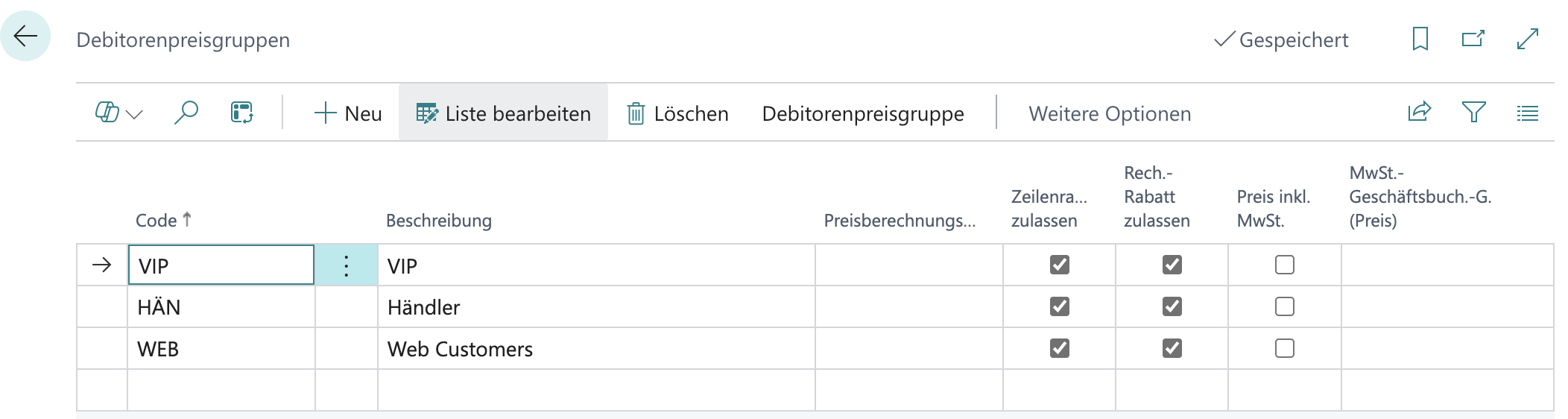
Create *"Customer Price Groups"* in BC. The quickest way to reach this menu is through the BC search.

<div align="left" data-with-frame="true"><figure><img src="https://content.gitbook.com/content/Pma4R4cytVXRDRO1gkpH/blobs/5sNmRCSaXLEvDjkRmdtT/Bildschirmfoto%202026-04-21%20um%2011.33.35.png" alt="" width="563"><figcaption></figcaption></figure></div>
{% endstep %}

{% step %}
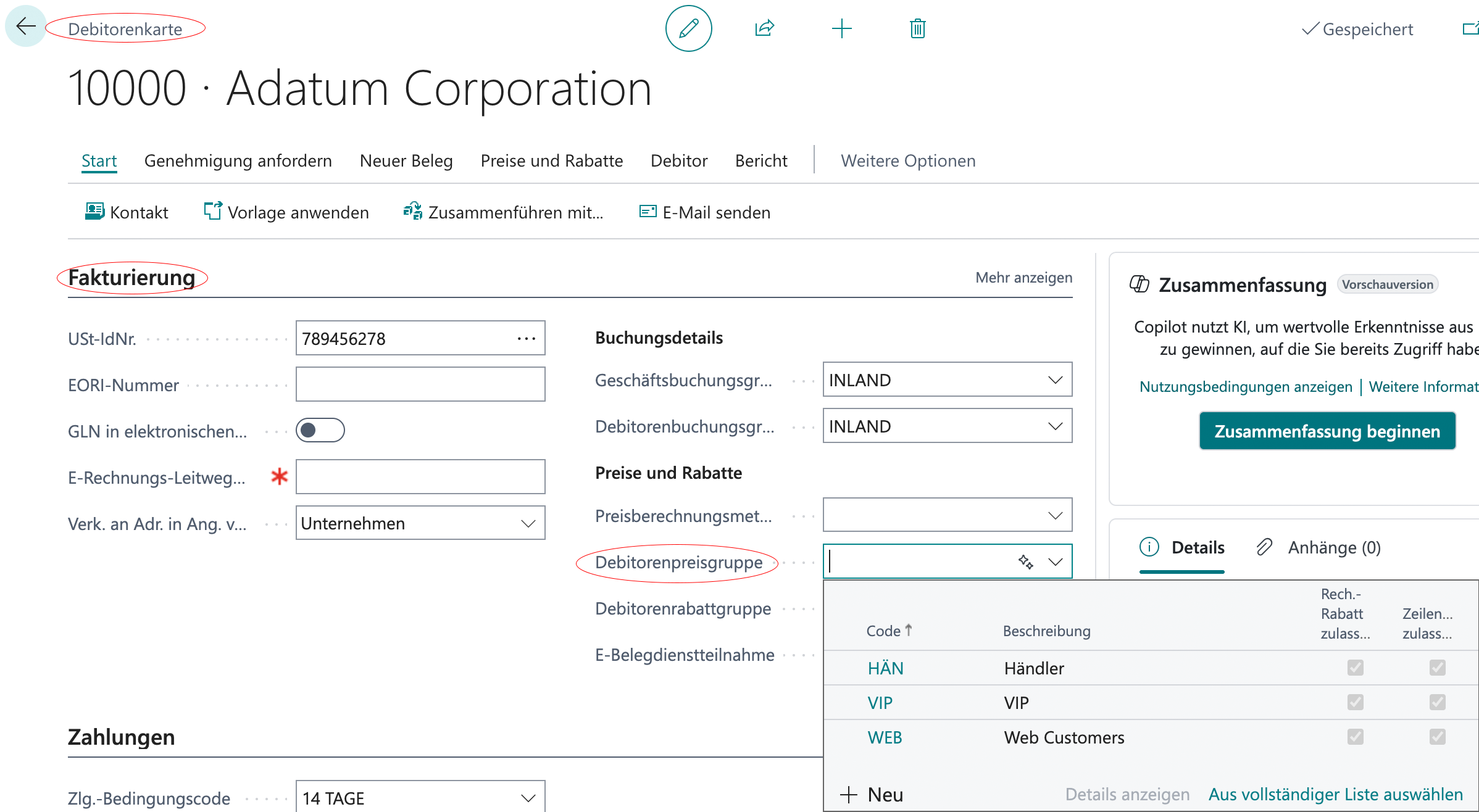
Assign a price group to the customer. To do so, open the *"Invoicing"* section on the Customer Card of the respective customer. Then select the appropriate template from the drop-down menu in the *"Customer Price Group"* field.

<div align="left" data-with-frame="true"><figure><img src="https://content.gitbook.com/content/Pma4R4cytVXRDRO1gkpH/blobs/Yr0Sue7xEEj53iwAxqYl/Bildschirmfoto%202026-04-21%20um%2011.37.58.png" alt="" width="563"><figcaption></figcaption></figure></div>
{% endstep %}

{% step %}
Create prices for the price groups. See also [Special Prices in Business Central](#id-1.-special-prices-in-business-central).
{% endstep %}
{% endstepper %}

### 3.2 Mapping to Shopware

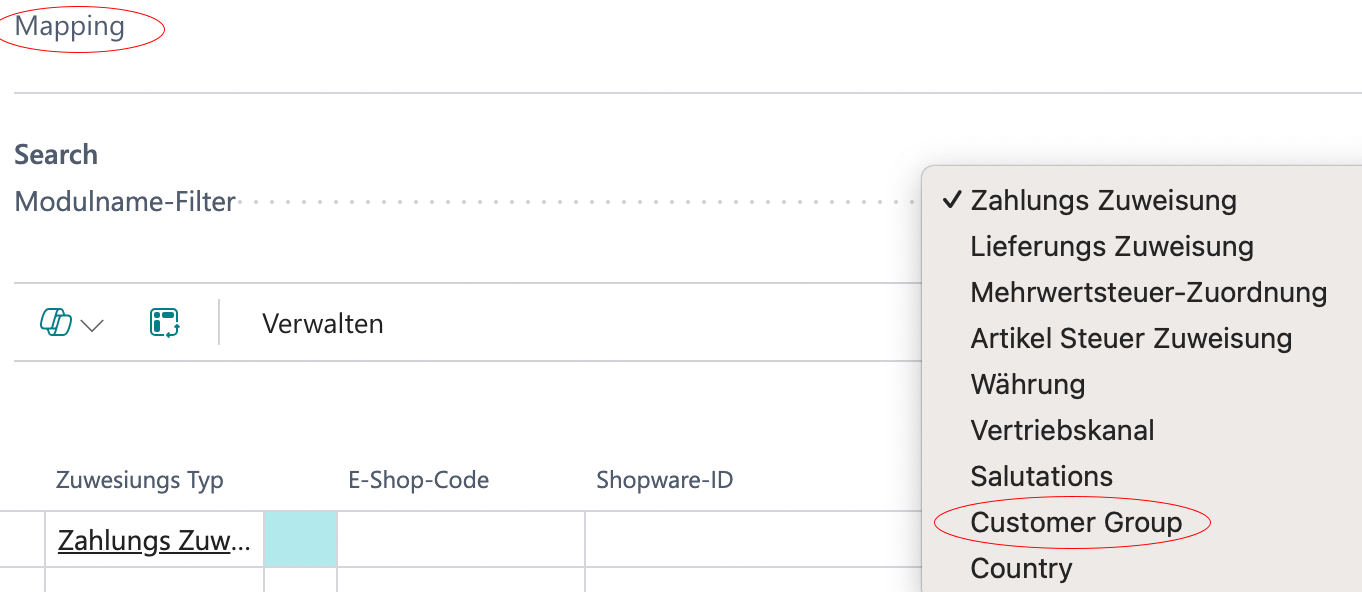
* Open **Shopware** <i class="fa-right">:right:</i> **Mapping** <i class="fa-right">:right:</i> **Customer Groups**
* Map the BC price groups to the Shopware customer groups:

{% columns %}
{% column width="58.333333333333336%" %}

<div align="left" data-with-frame="true"><figure><img src="https://content.gitbook.com/content/Pma4R4cytVXRDRO1gkpH/blobs/X3VFsDGUNnFTyDSNR3ts/Bildschirmfoto%202026-04-21%20um%2011.54.43.png" alt="" width="375"><figcaption></figcaption></figure></div>
{% endcolumn %}

{% column width="41.666666666666664%" %}

<table><thead><tr><th width="144.8192138671875">BC Price Group</th><th width="145.387451171875">Shopware Customer Group</th></tr></thead><tbody><tr><td>DEALER</td><td>Dealers</td></tr><tr><td>VIP</td><td>VIP customers</td></tr><tr><td>WHOLESALE</td><td>Wholesale</td></tr></tbody></table>
{% endcolumn %}
{% endcolumns %}

## 4. Discounts

### 4.1 Line Discounts

#### **Discounts at item level:**

Create the sales line discounts directly in Business Central. They are then transferred to Shopware as percentage discounts.

This ensures that the discount information maintained in Business Central is passed to Shopware consistently and can be used there for the corresponding sales or item data.

#### **How do you get to the price list line?**

1. **Either from the item view**

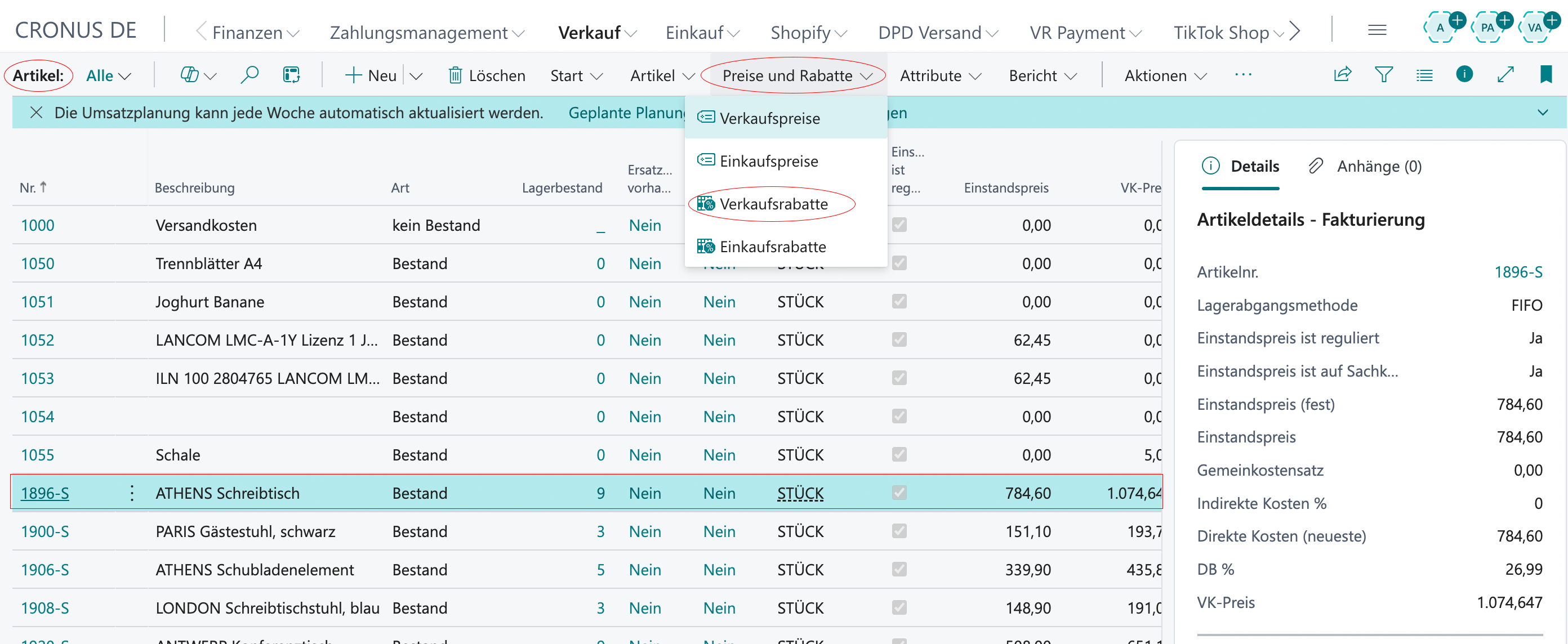
In the item list, first select the item for which a discount is to be stored. Click the item you want so that it is highlighted.

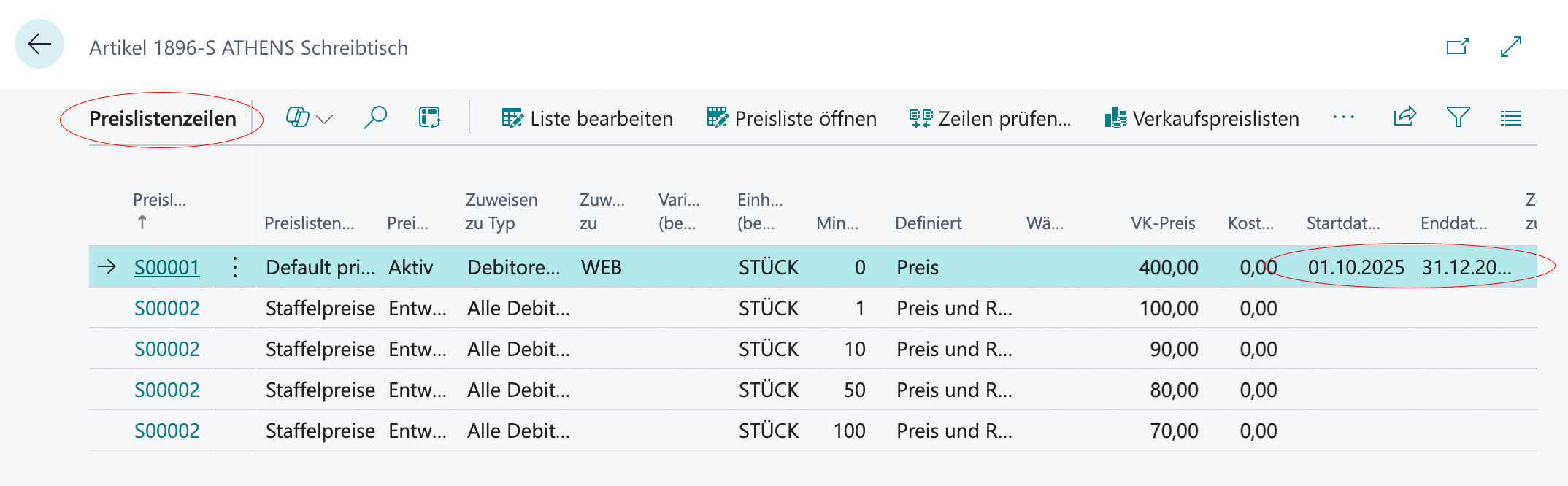
Then open the corresponding view through the menu item *"Prices & Discounts"* <i class="fa-right">:right:</i> *"Sales Discounts"*. There you can enter the price list lines you need and maintain the sales discounts for the selected item.

<div align="left" data-with-frame="true"><figure><img src="https://content.gitbook.com/content/Pma4R4cytVXRDRO1gkpH/blobs/KJMMd5iUb8fy2OWQRzOs/Bildschirmfoto%202026-04-28%20um%2011.22.27.png" alt=""><figcaption><p>Item list</p></figcaption></figure></div>

2. **Or from the Item Card**

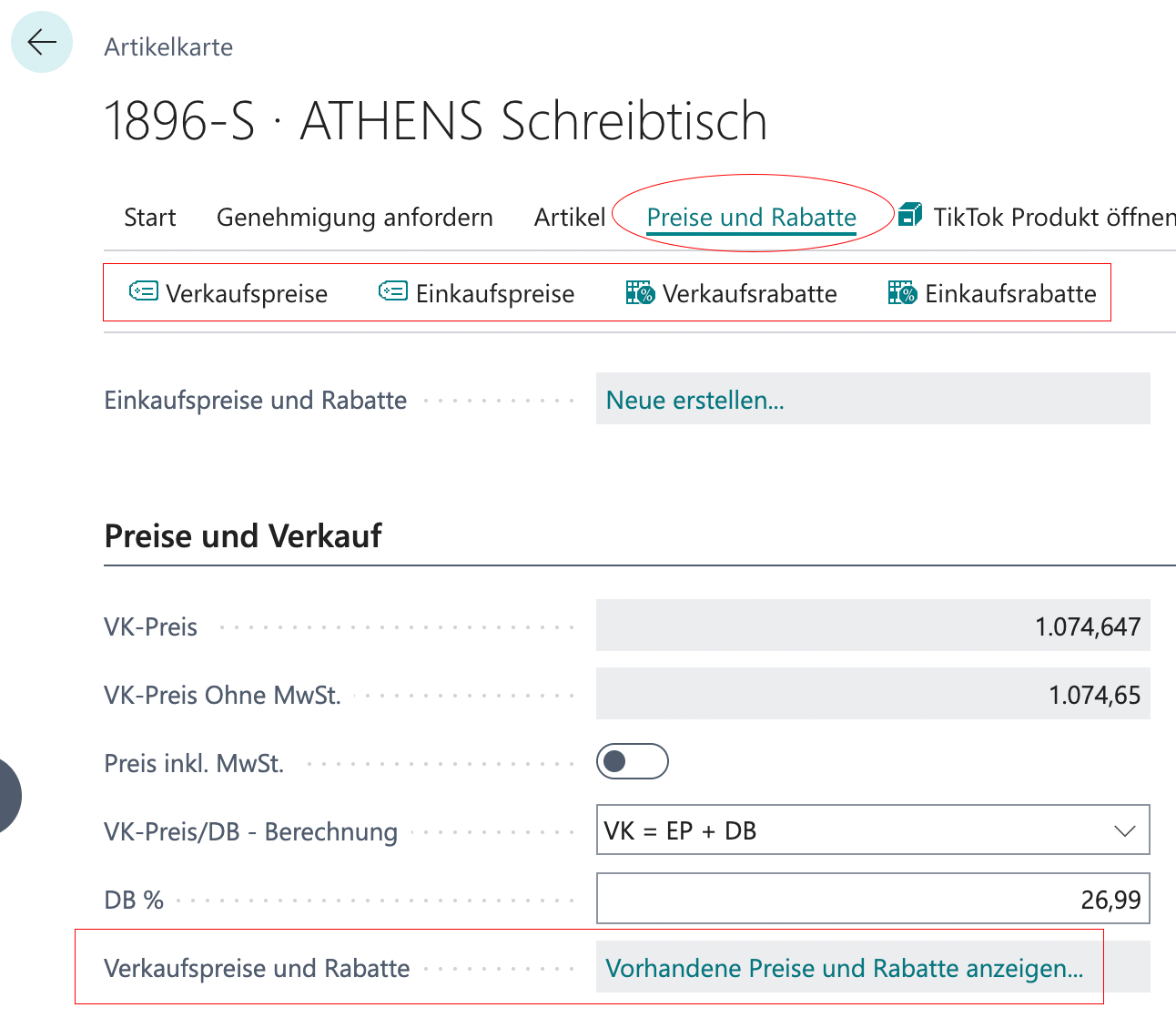
On the Item Card there are two ways to open the *"Price List Lines"* menu.

You can either call up the price list lines through the menu item *"Prices & Discounts"* or, alternatively, select the *"Sales Prices & Discounts"* entry in the *"Prices & Sales"* section.

Both paths lead to the corresponding view, in which you can view and edit the price list lines or enter new sales discounts. See the screenshot.

<div align="left" data-with-frame="true"><figure><img src="https://content.gitbook.com/content/Pma4R4cytVXRDRO1gkpH/blobs/RO17dI7a6o0pNFW88Pmk/Bildschirmfoto%202026-04-28%20um%2011.54.26.png" alt="" width="375"><figcaption></figcaption></figure></div>

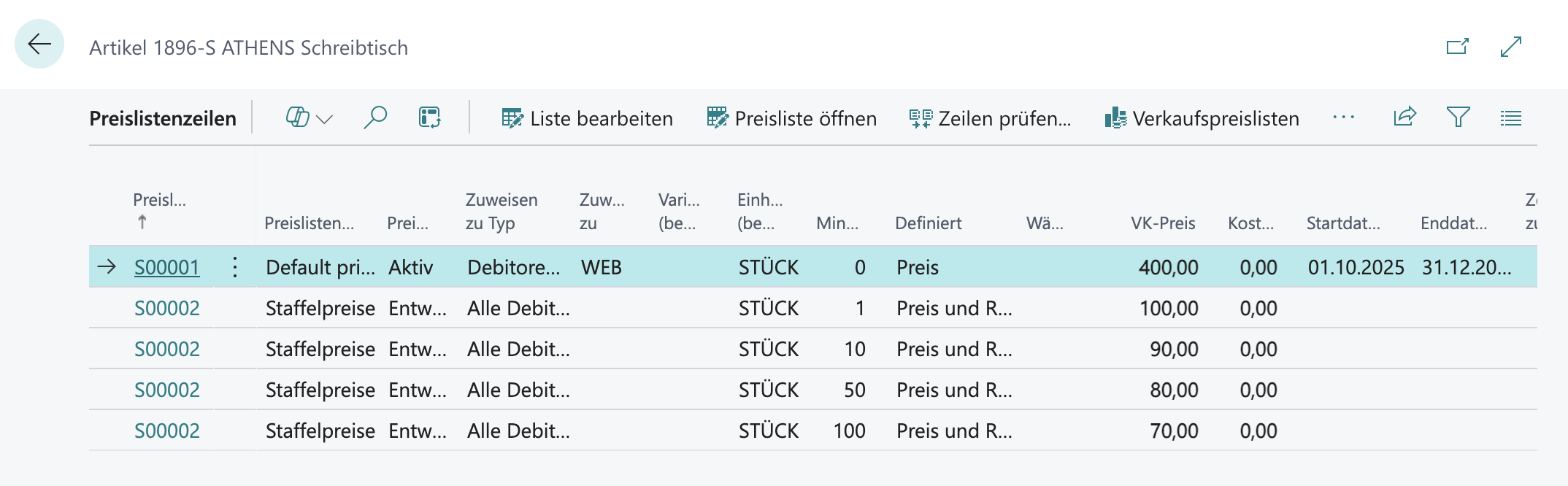
<div align="left" data-with-frame="true"><figure><img src="https://content.gitbook.com/content/Pma4R4cytVXRDRO1gkpH/blobs/vNh55guRYwCtayP3o1a5/Bildschirmfoto%202026-04-28%20um%2011.42.41.png" alt="" width="563"><figcaption><p>Menu item: price list lines per item</p></figcaption></figure></div>

### 4.2 Customer Discounts

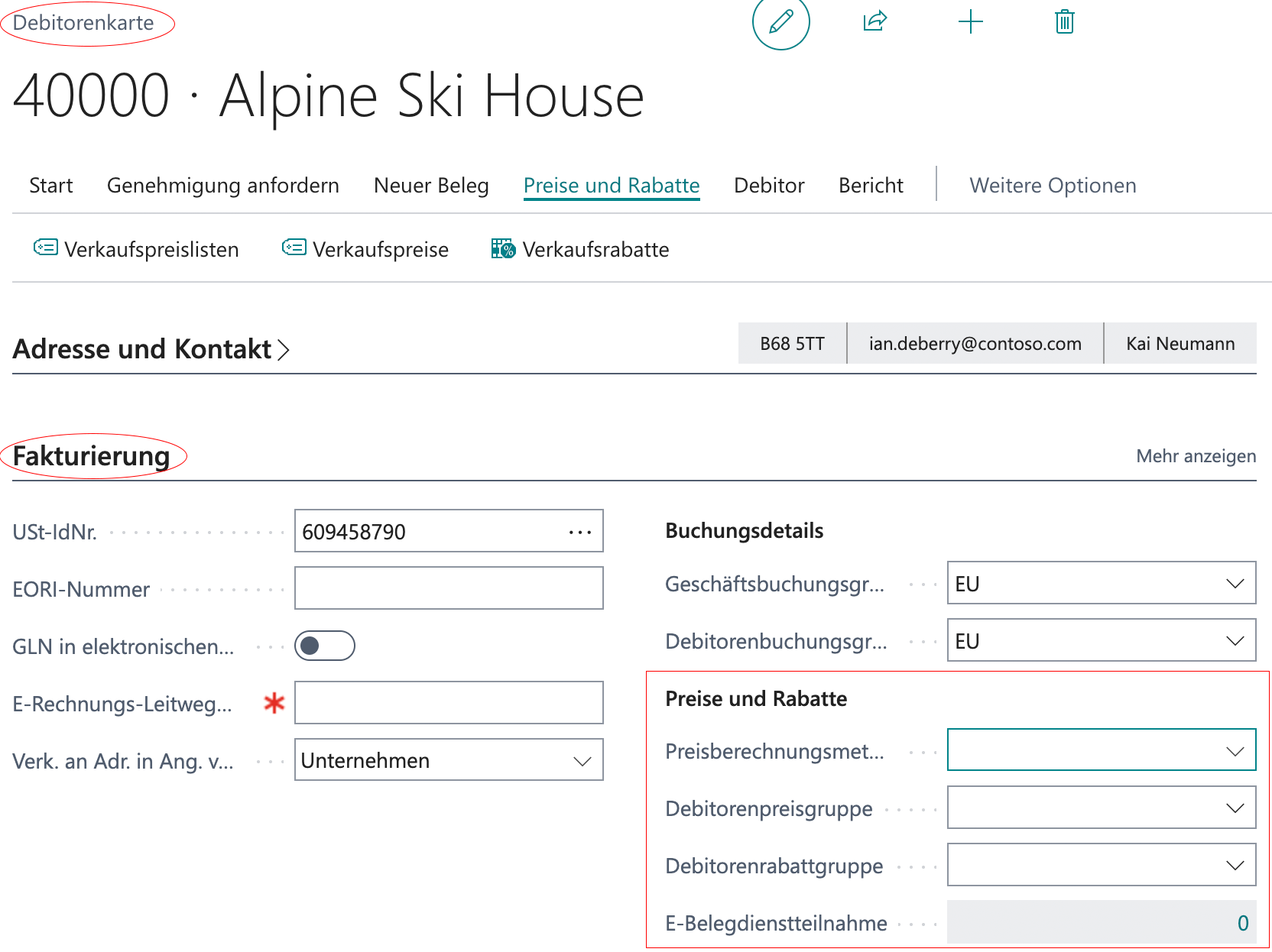
**Discounts for specific customers** are stored directly on the respective Customer Card. To do so, open the Customer Card of the customer you want and enter the corresponding discount information there.

On the Customer Card, navigate to the *"Invoicing"* section and then to the *"Prices & Discounts"* entry. There you can define which discount applies to the customer and at what rate it is granted.

The stored discounts are then taken into account when documents are created for this customer.

<div align="left" data-with-frame="true"><figure><img src="https://content.gitbook.com/content/Pma4R4cytVXRDRO1gkpH/blobs/1ByukxvjPXjOk8J0ZtxX/Bildschirmfoto%202026-04-30%20um%2009.43.16.png" alt="" width="563"><figcaption></figcaption></figure></div>

## 5. Campaign Planning

**Preparation:**

Four weeks before the start, the prices are created in **Business Central**. One week before the start, the synchronization is tested to make sure that the data is transferred correctly. On the launch day, a final check is carried out in **Shopware**.

To create a campaign, scroll up to the section [4.1 Line Discounts](#id-4.1-line-discounts). There you will find the corresponding instructions for setting up a campaign.

<div align="left" data-with-frame="true"><figure><img src="https://content.gitbook.com/content/Pma4R4cytVXRDRO1gkpH/blobs/eLMeOK3A2zbT6VbSRcHR/Bildschirmfoto%202026-04-28%20um%2011.42.41.png" alt="" width="563"><figcaption></figcaption></figure></div>

{% hint style="info" %}
Once the campaign period has expired, the campaign prices stored in Business Central automatically become invalid. Shopware then displays the regular prices again. No manual action is required for this.
{% endhint %}

<details>

<summary><strong>Tips for Day-to-Day Use</strong></summary>

<table data-view="cards"><thead><tr><th></th></tr></thead><tbody><tr><td><p><strong>Campaign planning</strong></p><ul><li>Plan campaigns well in advance.</li><li>Test prices before the campaign starts.</li><li>Document all campaigns.</li></ul></td></tr><tr><td><p><strong>Pricing strategy</strong></p><ul><li>Keep discounts attractive but profitable.</li><li>Limit campaign periods.</li><li>Communicate clearly.</li></ul></td></tr><tr><td><p><strong>Control</strong></p><ul><li>Spot-check prices.</li><li>Monitor the Activity Log.</li><li>Respond quickly to errors.</li></ul></td></tr></tbody></table>

</details>


---

# Agent Instructions
This documentation is published with GitBook. GitBook is the documentation platform designed so that both humans and AI agents can read, navigate, and reason over technical content effectively. Learn more at gitbook.com.

## Querying This Documentation
If you need additional information that is not directly available in this page, you can query the documentation dynamically by asking a question.

Perform an HTTP GET request on the current page URL with the `ask` query parameter, and the optional `goal` query parameter:

```
GET https://docs.solutioo.de/shopware/shopware6_en_us/price-and-inventory-management/price-updates/special-prices.md?ask=<question>&goal=<endgoal>
```

`ask` is the immediate question: it should be specific, self-contained, and written in natural language.
`goal` is optional and describes the broader end goal you are ultimately trying to accomplish on behalf of the user. GitBook uses it to tailor the answer towards what is most useful for that goal.

The response will contain a direct answer to the question and relevant excerpts and sources from the documentation.

Use this mechanism when the answer is not explicitly present in the current page, you need clarification or additional context, or you want to retrieve related documentation sections.