> For the complete documentation index, see [llms.txt](https://docs.solutioo.de/llms.txt). Markdown versions of documentation pages are available by appending `.md` to page URLs; this page is available as [Markdown](https://docs.solutioo.de/dhl-connector/dhlconnector_en_us/configuration/grundlegende-einstellungen.md).
# Basic settings
{% hint style="info" %}
To access the **Basic Settings**, proceed as follows:
[Getting Started](/dhl-connector/dhlconnector_en_us/getting-started/lizenzerwerb.md)
{% endhint %}
When you start the **guided setup**, a pop-up window will open.\
Here you’ll also find a reference to this documentation in case you encounter any questions or issues.\
Click *“Next”* to begin the actual setup process.
## **1. Mode Selection**
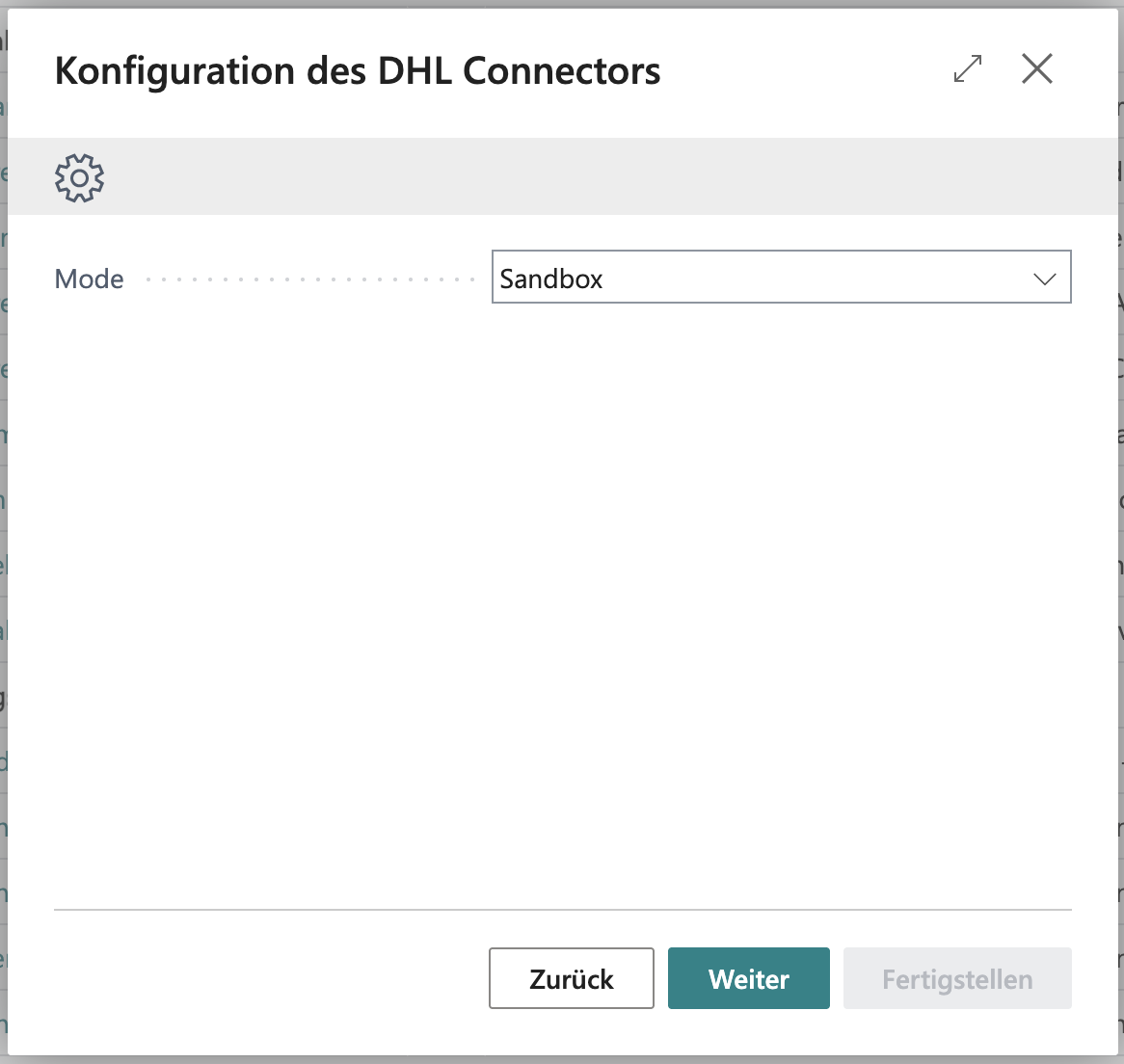
In the first step, you can choose whether to start the connector in **Live Mode** or **Sandbox Mode**.
If you select **Sandbox**, entering your customer account data is **not required**.
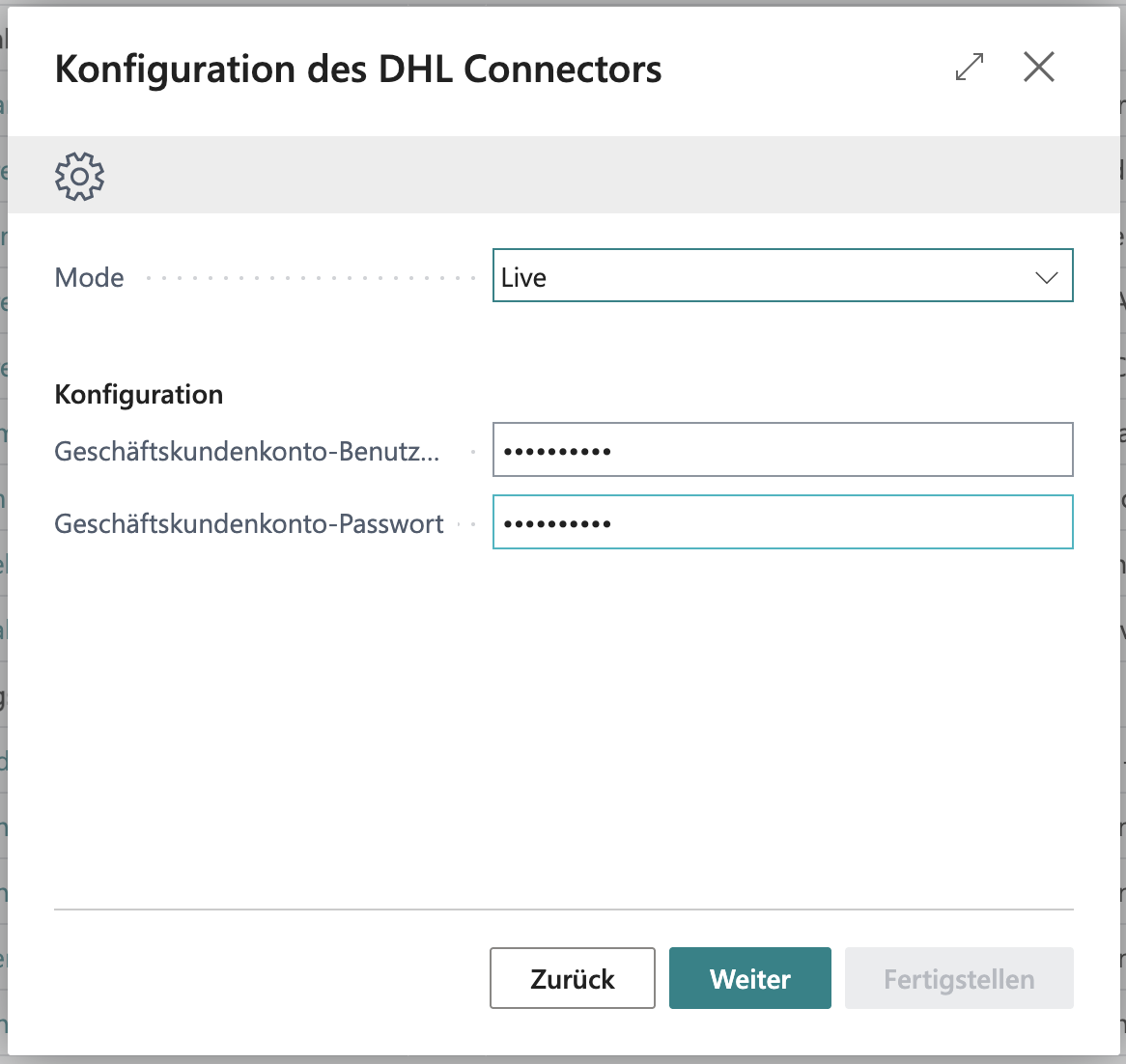
Only when switching to **Live** will an additional configuration screen appear, prompting you to enter your **username and password** for the DHL Business Customer Portal.
{% hint style="warning" %}
To avoid input errors, copy your username and password into a text document first, verify them, and then paste them into Business Central. Extra spaces before or after the input often cause errors.
{% endhint %}
After entering your data, click *“Next”* to continue.
## **2. Sender Data**
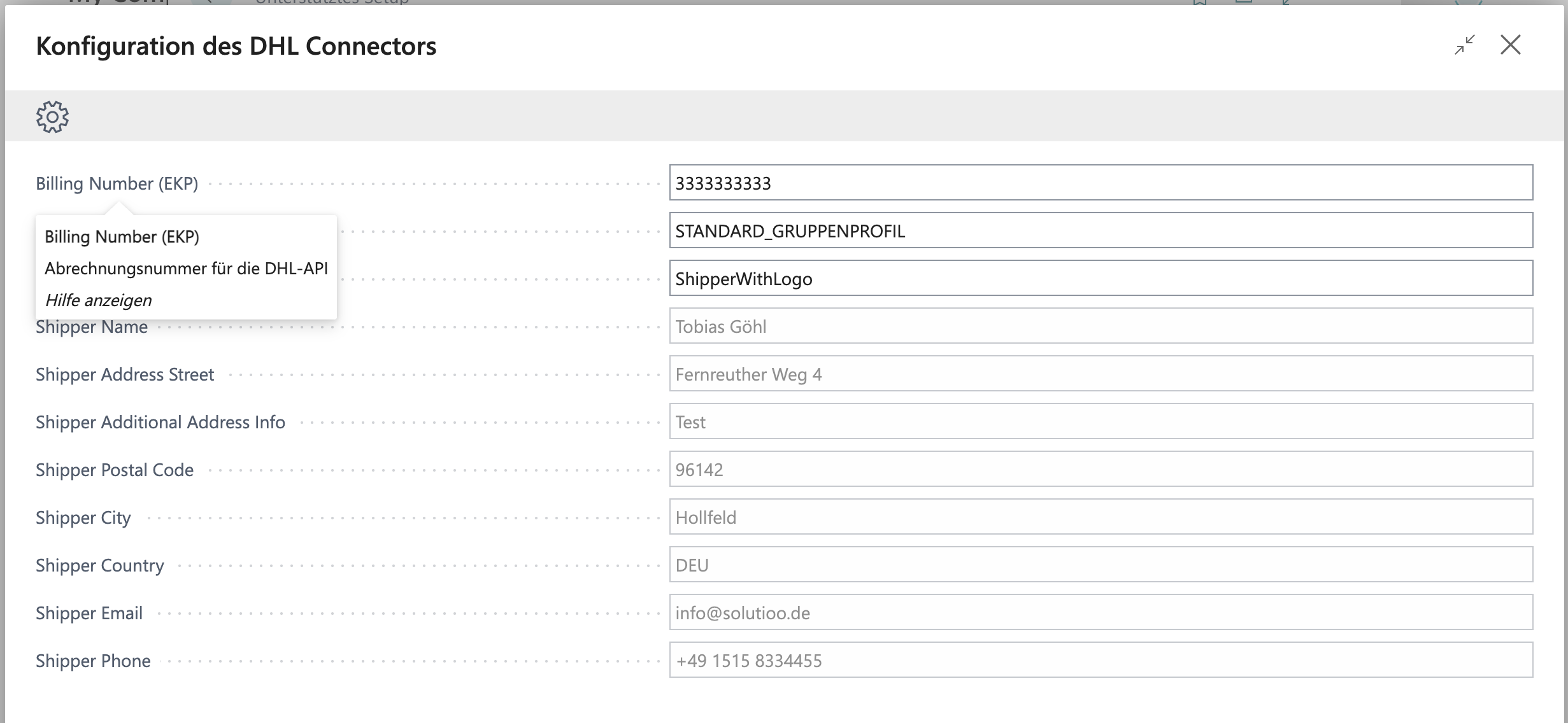
In the second step, you’ll be asked to provide your **sender information**.\
It’s best to **maximize the pop-up window** by clicking the *“Expand”* icon in the top-right corner (next to *“Close”*) so that all rows are clearly visible.
Hovering over each field label displays additional information.
#### **Billing Number (EKP)**
Enter the billing number from your DHL Business Customer Portal, which can be found in the **Billing Center**.\
The EKP number always consists of **10 digits** — therefore, omit the last four digits of your billing number.\
If you’re using **Sandbox Mode**, you can leave the default value **3333333333**.
#### **Profile Name**
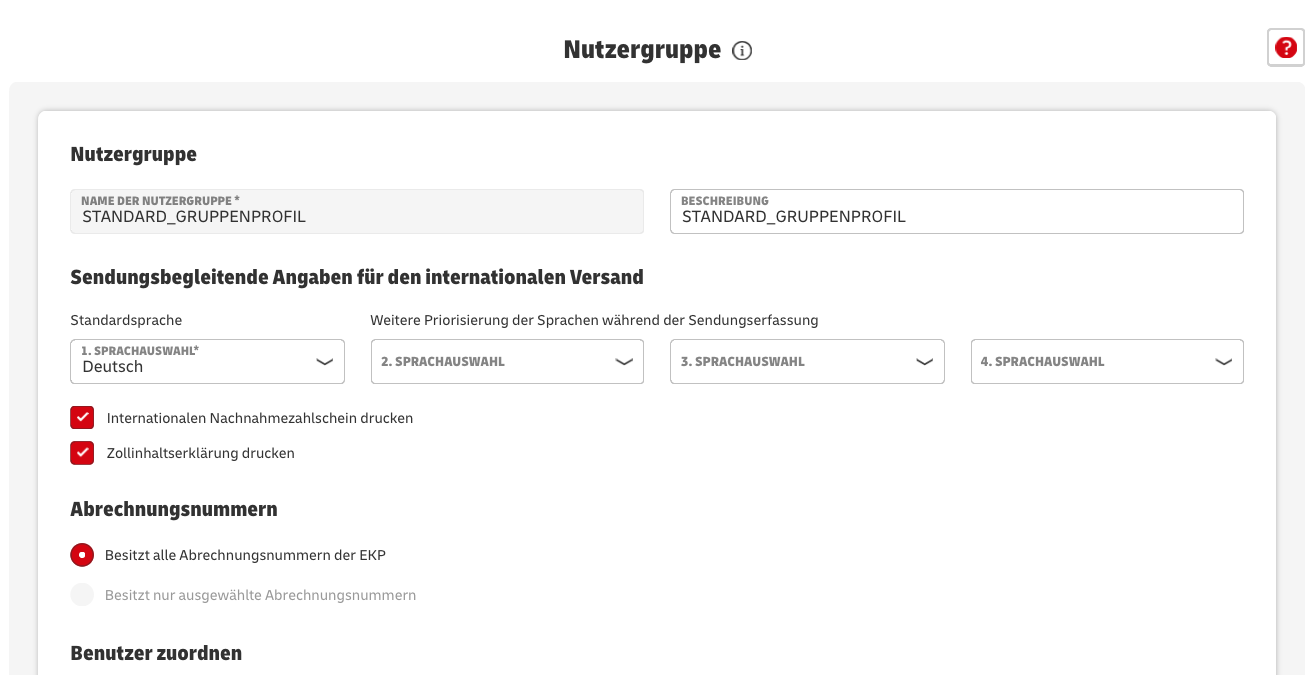
This corresponds to the **user group** defined in your DHL Business Customer profile.\
Example:
#### **Shipper Reference**
The **Shipper Reference** is used if you have defined a sender reference in your DHL Business Customer Portal and want to use that name as the shipper reference.\
If you specify this, the sender details below **cannot be set** within the connector and must be managed directly in the DHL portal.\
If you leave the shipper reference field empty, you must complete the following sender fields manually.\
You can find your shipper reference under *Parcels & Goods > Templates > Shipment Creation* in your DHL Business Customer Portal.\
Make sure to **enter the template name exactly** as it appears there.
#### **Shipper Name**
The name of the sender displayed on shipping labels.
#### **Shipper Address Street**
The sender’s street address displayed on shipping labels.
#### **Shipper Additional Address Info**
Additional address information. This field **must not be empty!**
#### **Shipper Postal Code**
The sender’s postal code displayed on shipping labels.
#### **Shipper City**
The sender’s city displayed on shipping labels.
#### **Shipper Country**
The sender’s country displayed on shipping labels. Use the **country code “DEU”** instead of writing “Germany.”
#### **Shipper Email**
The sender’s email address displayed on shipping labels.
#### **Shipper Phone**
The sender’s phone number displayed on shipping labels.
## **3. Test the Connection**
Once **all fields** are completed, click the *“Test Connection”* button to check your connection to DHL.\
If the test fails, review your entries carefully for typos or formatting errors.
## **4. Done!**
Click *“Next”* and then *“Finish”* to complete the configuration.
Your **DHL Connector setup** is now complete and ready for use!
---
# Agent Instructions
This documentation is published with GitBook. GitBook is the documentation platform designed so that both humans and AI agents can read, navigate, and reason over technical content effectively. Learn more at gitbook.com.
## Querying This Documentation
If you need additional information that is not directly available in this page, you can query the documentation dynamically by asking a question.
Perform an HTTP GET request on the current page URL with the `ask` query parameter, and the optional `goal` query parameter:
```
GET https://docs.solutioo.de/dhl-connector/dhlconnector_en_us/configuration/grundlegende-einstellungen.md?ask=&goal=
```
`ask` is the immediate question: it should be specific, self-contained, and written in natural language.
`goal` is optional and describes the broader end goal you are ultimately trying to accomplish on behalf of the user. GitBook uses it to tailor the answer towards what is most useful for that goal.
The response will contain a direct answer to the question and relevant excerpts and sources from the documentation.
Use this mechanism when the answer is not explicitly present in the current page, you need clarification or additional context, or you want to retrieve related documentation sections.